

Bilberry Base supports both simple and advanced accommodation functionality, giving the flexibility to offer overnight stays directly from a website or internally through Bilberry.
The accommodation feature in Bilberry allows customers to book overnight stays spanning several days. There are two main approaches to selling accommodation in Bilberry:
-
Basic Accommodation — Suitable for simple overnight stays, sold per guest.
-
Advanced Accommodation — Designed for room-based bookings, allowing room quantity, guest limits per room and full calendar search functionality.
|
Feature |
Basic Accommodation |
Advanced Accommodation |
|---|---|---|
|
Price per... |
Guest |
Room |
|
Capacity defined as... |
Total guests |
Number of rooms |
|
Widget support |
Yes (standard widgets) |
Yes (Accommodation Calendar Search) |
|
Suitable for |
Cabins, tents, simple rooms |
Hotels, lodges and full accommodation units |
|
Room assignment |
No |
Yes |
Basic Accommodation
Setup Steps
-
Create a product as usual (add descriptions, images, etc.). Read more about how to create a product .
-
Set capacity based on how many guests the product (accommodation) can host.
-
Add pricing (this is per guest).
-
Switch the Is accommodation? toggle on.

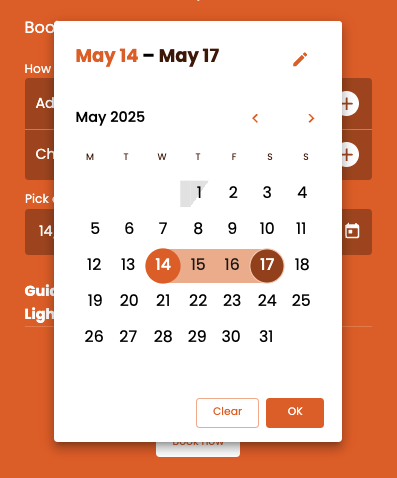
Enabling this toggle will allow the connected widget to display a date range selector, enabling customers to choose both a from date and to date. Read more about widgets here.
Accommodation bookings are only allowed for consecutive days (no gaps).
Each day booked creates a separate order under the selected tour period.
-
Set availability for the product by creating tour periods. Read more about how to add availability here.
Tour Customization
Each tour in the tour period can still have its own:
-
Price
-
Cut-off rules
-
Cancellation policies
-
Other specific settings
Read more about the tour customization here.
Advanced Accommodation
This configuration is used for more complex lodging setups where the system manages individual rooms, room capacity and booking allocation.
Setup Steps
-
Follow step 1-4 as described in the previous Basic Accommodation setup steps.
-
Click

-
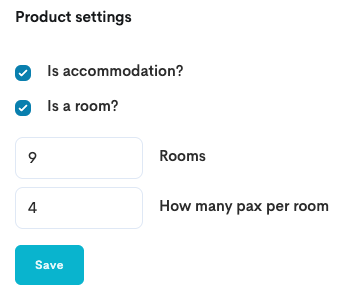
Enable both check boxes Is accommodation? and Is a room? to define the number of rooms available and how many guests are allowed per room.
-
Define the number of rooms and max guests per room.
-
Click Save.
-
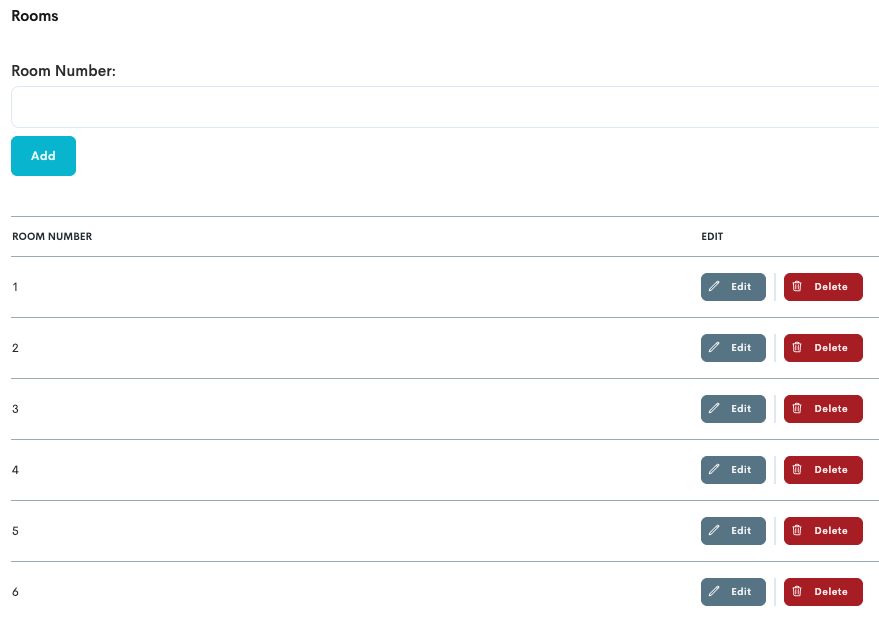
Define specific room number/names for easier guest assignment management. Click Add when adding every room.
The Accommodation Calendar Search Widget is used for searching and selecting room-based stays.
Making the Product Available
Option 1: Widget on Website
Add the widget under to the website CMS. Read more about this here.
<bilberry-accommodation-calendar-search
    provider="bilberry"
    product-ids="1,2,3"
></bilberry-accommodation-calendar-search>
This widget allows customers to search for multiple room-based accommodation products.
Option 2: Sell via Bilberry Interface (Product Collection)
-
Create availability for each accommodation product. Read more about doing this here.
-
Navigate to the Main Menu.
-
Click Products.
-
Click Settings.
-
Click Product collections.
-
Click Create in the top right corner.
-
Type a name of the Product collection and click Save.
-
Click the name.
This takes you to a page where you can edit the Product collection. From here it is possible to customize your product collection with images and text via the two tabs Collection images and Translations.
-
Switch Is room and Public on.
-
List mode can be activated if the product collection should be bookable through the micro store.
-
-
Click Save.
-
Add the appropriate accommodation products to the Product Collection by clicking the

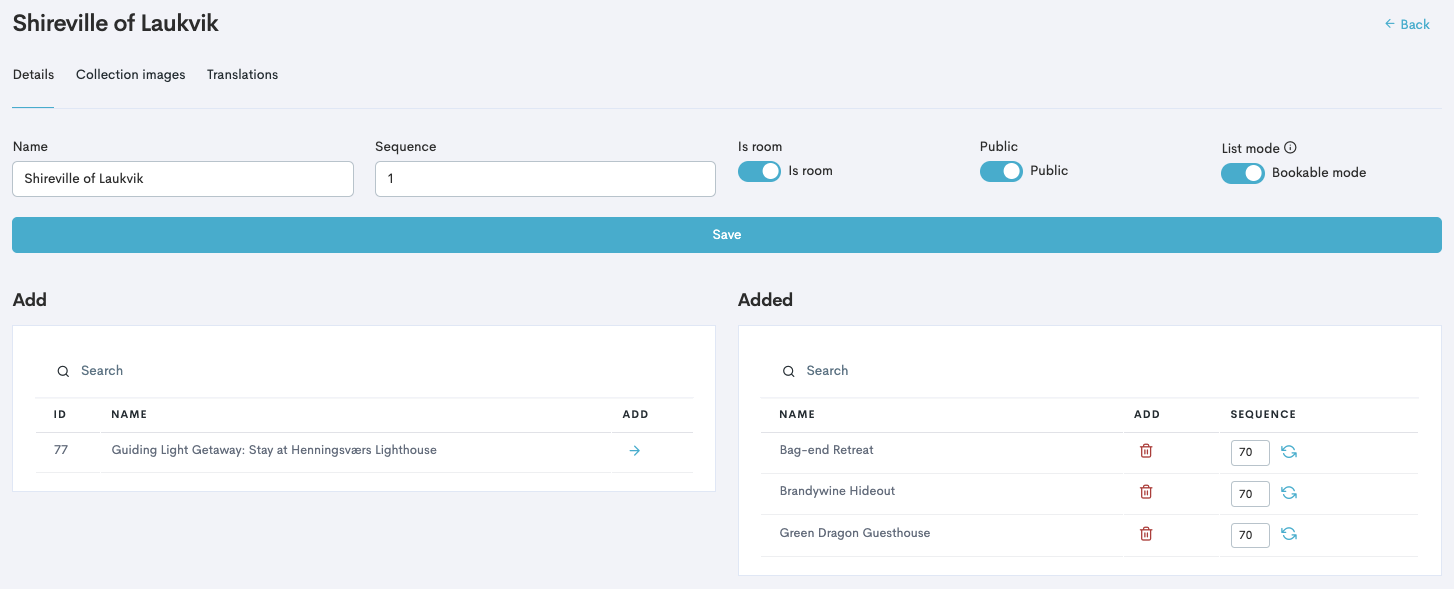
Only products with Is room switched on will work in this flow.
Back in the Product collection list it is possible to click 
Booking Calendar
When a guest books an accommodation product with Is a room? enabled, it will appear in the Accommodation Calendar. This makes it easy for operations teams to manage check-ins and room readiness in the system.
-
Navigate to the Main Menu.
-
Click Calendar.
-
Click Accommodation.
-
Click the

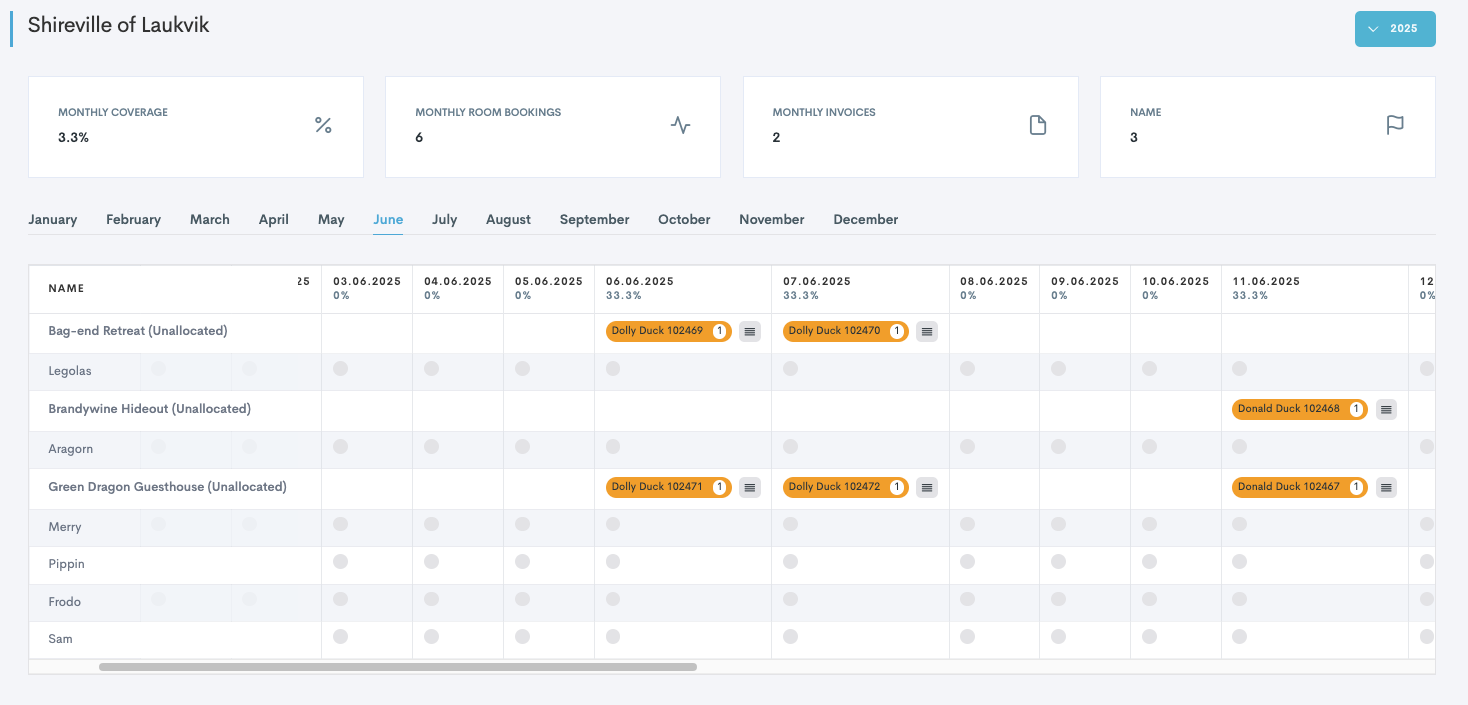
From here, admins can assign guests to specific rooms. It is also possible to view bookings before and after room assignment. Use notes and cleaning statuses for room management, by clicking on the room booking.
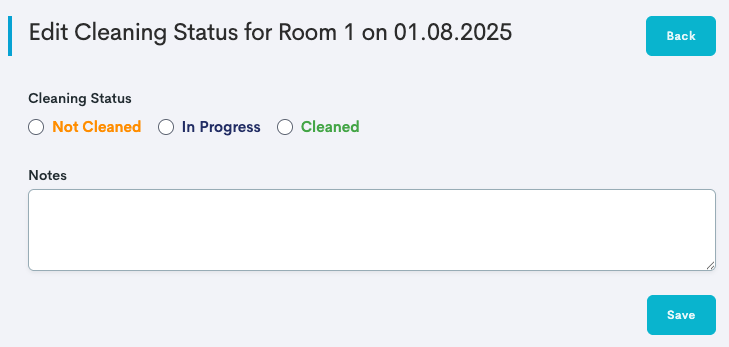
To view a list of all accommodation bookings (ongoing, upcoming, passed and cancelled) you can navigate to the Main Menu → Projects → Accommodation.