

Each customer has their own dedicated Bilberry environment with a unique instance URL. Use your company’s instance URL to access the login page and follow the steps below to set your password the first time you sign in.
🔓 First Time Signing In
An administrator must create a user before you can sign in with your Bilberry account.
The first time you sign in to Bilberry, you will have to create your own password:
-
Navigate to the login page by opening your browser and enter your Bilberry instance URL in the address bar.
Example: yourcompanyname.bilberry.app -
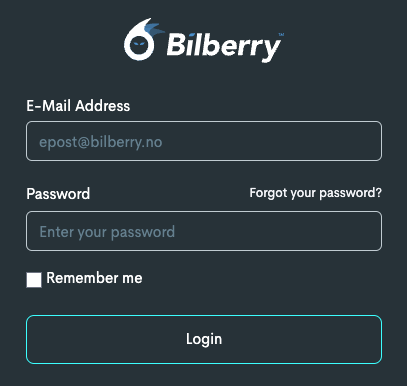
Click Forgot your password?
This will take you to a page where you add your email.
-
Enter your Email Address in the box.
-
Click Reset Password.
You will receive an email containing a link to create a new password.
-
Open the email and click Lag nytt passord (Translation: Create New Password).
This takes you to a page where you can create a new password.

-
On the next page, enter your desired password two times.
-
Click Create New Password to log in.
The next time you need to log in, you can use your email and newly created password.
If you are an administrator, see the guide Users and Permissions for instructions on how to add or edit users.