

User roles determine what a user can access and view in their Bilberry account. Each role has specific permissions controlling allowed actions. Users can have multiple roles, granting varied access levels based on their responsibilities.
User roles determine who can submit support tickets through our support channel and who can receive information about the Bilberry account. When people contact support, we must confirm they are employees or registered users of that Bilberry instance. This requirement is crucial for GDPR compliance and accounting purposes.
👥 Add a New User
-
In the Administrator section in the left main menu, navigate to Settings → Users.
-
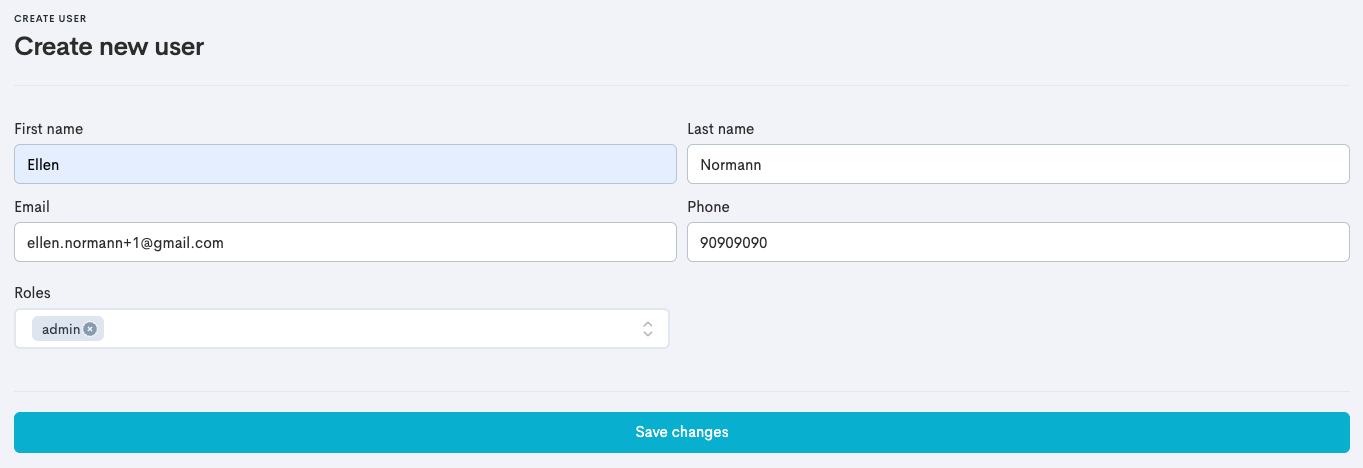
Click Create user.
-
Enter the users First name, Last name, Email and Phone.
-
Select the Roles to assign to the user. This will determine their permissions and access within the system.
-
Click Save changes.
See our article about how to Sign In to Bilberry to learn how to log in for the first time!
🔧 Edit a User
-
In the Administrator section in the left main menu, navigate to Settings → Users.
-
Scroll to the user and click Menu → Edit.
-
Update the users name, contact information and/or roles.
-
Add or update the users employee number and title.The employee number can represent the employee number that exists in an external system, if you use this.
-
Click Save changes.
🎩 Roles and Permissions
Please note that some role combinations may cause access issues. For example, if a user has both the Admin and Staff roles, attempting to delete an order may result in a 404-error due to restricted permissions associated with the Staff role.
If an error occurs, try removing the “lesser” role from a user and then try to do the action once again.
|
Role |
Permission |
Typically Assigned To |
|---|---|---|
|
Admin
|
Full access to the entire system and settings. |
CEOs and managers who need complete control over the system. |
|
Operator
|
Full access to the calendar to manage bookings, track arrivals, and oversee guides. |
Receptionists and those responsible for daily operations. |
|
Operator+
|
Extends the Operator role to also provide access to marking orders as paid, do refunds in general, view of the accommodation calendar and access to reports. Does not have access to system changes or update user roles (can only add new users). ⚠️ Must be assigned together with the Operator role. If a user is only given the role Operator+, they can not access the system. |
Receptionists and those responsible for daily operations, but in need of more access. |
|
Guide Admin
|
Can assign shifts to guides but does not have full system access. Combine this with Staff and/or Team Member roles to give the users a complete overview of trips, guides, and resources. |
Scheduling Managers. |
|
Staff
|
Can view the Assignment- and Availability calendars, track upcoming and completed shifts, log work hours, and manage their availability. |
Guides (Contractors). |
|
Staff+
|
Extends the Staff role to also provide access to the Self Assign Calendar, where they can view which tours still need a guide and sign themselves up for available tours. ⚠️ Must be assigned together with the Staff role. If a user is only given the role Staff+, they can not access the system. |
Guides (Contractors) in need of self assigning. |
|
Customer
|
Can view a calendar showing availability for their assigned products, create bookings, and view a list of sales they’ve made either through the back office or their website. ℹ️ When Allow login? is toggled on in the agent settings, the designated Point of Contact (POC) will have access to log in using their POC email. |
Agents. |
|
Supplier
|
Can view a calendar showing when the resources they provide are booked and view email conversations with customers sent within the system. ℹ️ When Allow login? is toggled on in the supplier settings, the designated Point of Contact (POC) will have access to log in using their POC email. |
External resource suppliers. |
|
Supplier+
|
Extends the Supplier role by allowing the user to adjust resource capacity and close departures for products using their resources. ⚠️ Must be assigned together with the Supplier role. If a user is only given the role Supplier+, they cannot access the system. |
External resource suppliers in need of more access. |
|
Team Member
|
Extends the Staff role to provide access to the main booking calendar where they can manage bookings, track arrivals, and oversee guides. ⚠️ Must be assigned together with the Staff role. If a user is only given the role Team Member, they cannot access the system. |
Guides (Employees). |
|
Accountant
|
Has read and write access to financial data and reports. |
Accountants or people in need of access to financial data. |
|
Auditor
|
Read-only access to financial data and reports. |
External Auditors or Compliance Officers. |


