

You can manage all gift card settings in the back office, including default values, expiration rules, and design options. This lets you control how gift cards behave and how they appear to customers. You can adjust these settings at any time without affecting existing gift cards.
Update the Gift Card Settings
-
In the left main menu, navigate to Settings → Gift Card Settings.
-
Enter the hex code for your Primary Color. This is the color of your header background.
-
Click Save.
-
Choose whether to hide your logo from the gift card.
-
Enter 0 to show your logo.
-
Enter 1 to hide your logo.
-
-
Click Save.
-
Choose whether to include a wave effect in your design layout.
-
Enter 0 to include the wave.
-
Enter 1 to hide the wave.
-
-
Click Save.


-
Under Default Duration, enter the number of months for which the gift card is valid. By default, this is set to 12 months.
-
Click Save.
-
Upload the Main Image that is used in your gift card.
If you have already uploaded an image and would like to change it, click Remove then upload the new image.
-
Upload the Preview Image. This is a banner image that will be displayed in the gift card link which the customer can open and view.
The gift card link (which also can be used to preview the gift card) is a public link and will follow the language in the browser of the person who is viewing it – not the language selected back office in the Bilberry system.
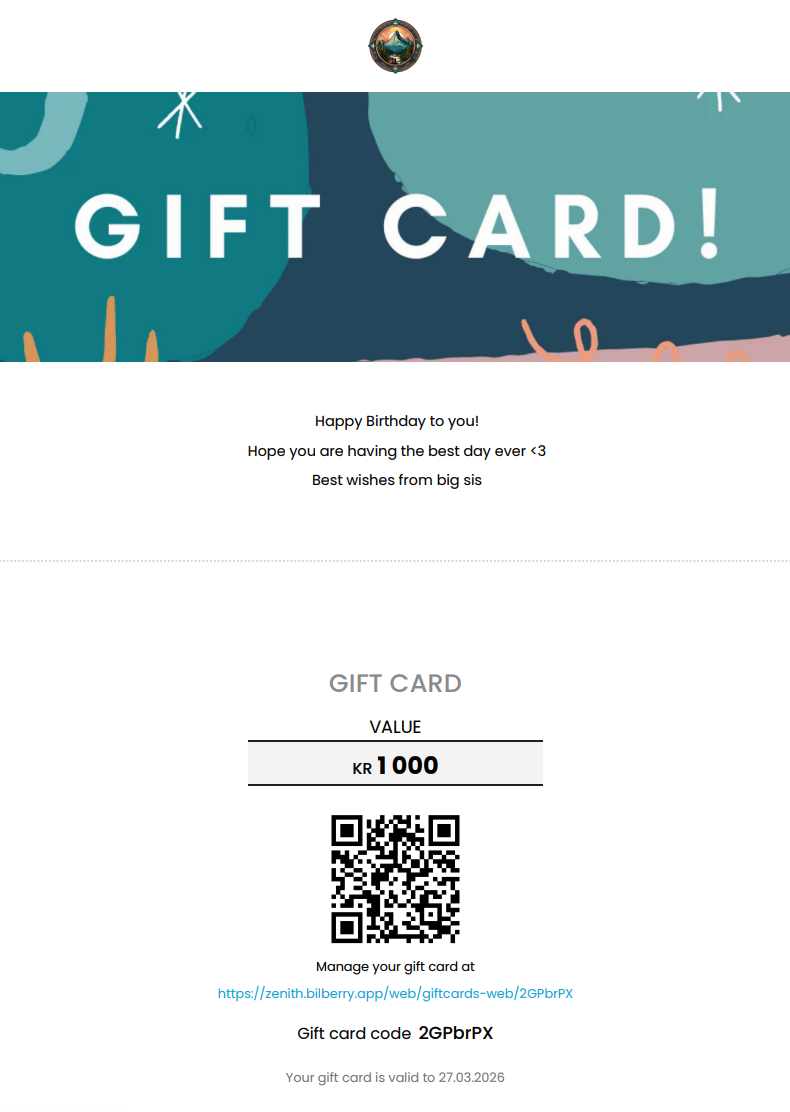
This is what the customer sees when opening the gift card image:
Changing the Configuration Code
Some edits within the gift card settings have to be done by adding a short code snippet to the configuration code.
Custom Increments for Gift Card Purchases
If you would like to use your own increments in the gift card purchase widget, you can do this by adding the code snippet under to the configuration code.
window.BilberryWidgetsGlobal.giftCardPriceIncrements = [10, 25, 50, 100];
The increments are buttons with numbers that customers can click to add value to the gift card in the checkout process. It is also possible to type in a specific amount in a value field.
The numbers (10, 25, 50, 100) can be changed to match what you want to display for your customers. See example below to understand how this displays in the checkout process for the customer.

For usability reasons, we recommend to not add more than 4 increments, although it is possible. Feel free to use fewer increments.
The prices are reflecting the currency configured in your Bilberry instance.