Most activity businesses run separate systems for online booking and in-person payments, leading to double bookkeeping and mismatched sales figures. Bilberry's integrated POS routes every transaction through the same system, with capacity updating across all channels instantly. If you also sell physical products, it handles those too — with unified reporting across all revenue streams.
Complete financial overview
Everything is consolidated in Bilberry — revenue by product type, payment method, and time period. This makes VAT reporting significantly easier where activities, rentals, and physical goods carry different rates, and gives you the data to plan staffing and optimise your product mix.
Built for reception staff
The interface works on both tablet and desktop and requires no additional training. Checking in a walk-in takes under a minute, and guests who booked online can be checked in by scanning their QR code. For operators managing group bookings with outstanding balances, the POS handles partial payments too.
🫱🏼🫲🏽 What is needed?
Bilberry POS will only work together with Nets and Susoft terminals.
Therefore, before anything can be connected, it is required to possess a terminal from one of the two payment solutions that is connected to WiFi. This can be the SmartPOS terminal from Nets (N950) – this needs to be ordered from Nets. If you already have this, or a terminal from Susoft that can be connected.
You can order the SmartPOS terminal (N950) from Nets here.
When you are in the possession of a terminal, your next step is to contact support@bilberry.no to request the activation from us.
It is possible to connect to several terminals, if you have several receptions or payment locations where this is needed.
✅ Activate POS
To activate POS you need to contact support@bilberry.no to request the activation, as mentioned above. We will need some information from you about the terminal that is being connected, so please add the following in your request to us:
If you want to connect a Susoft terminal:
-
Susoft portal link (e.g. https://bilberry.e-susoft.com/)
If you want to connect a Nets terminal:
-
Terminal ID (typically a number, e.g. 12345)
When the activation is completed from our end, you will find the POS menu point in the left main menu in Bilberry →

✨ Access POS
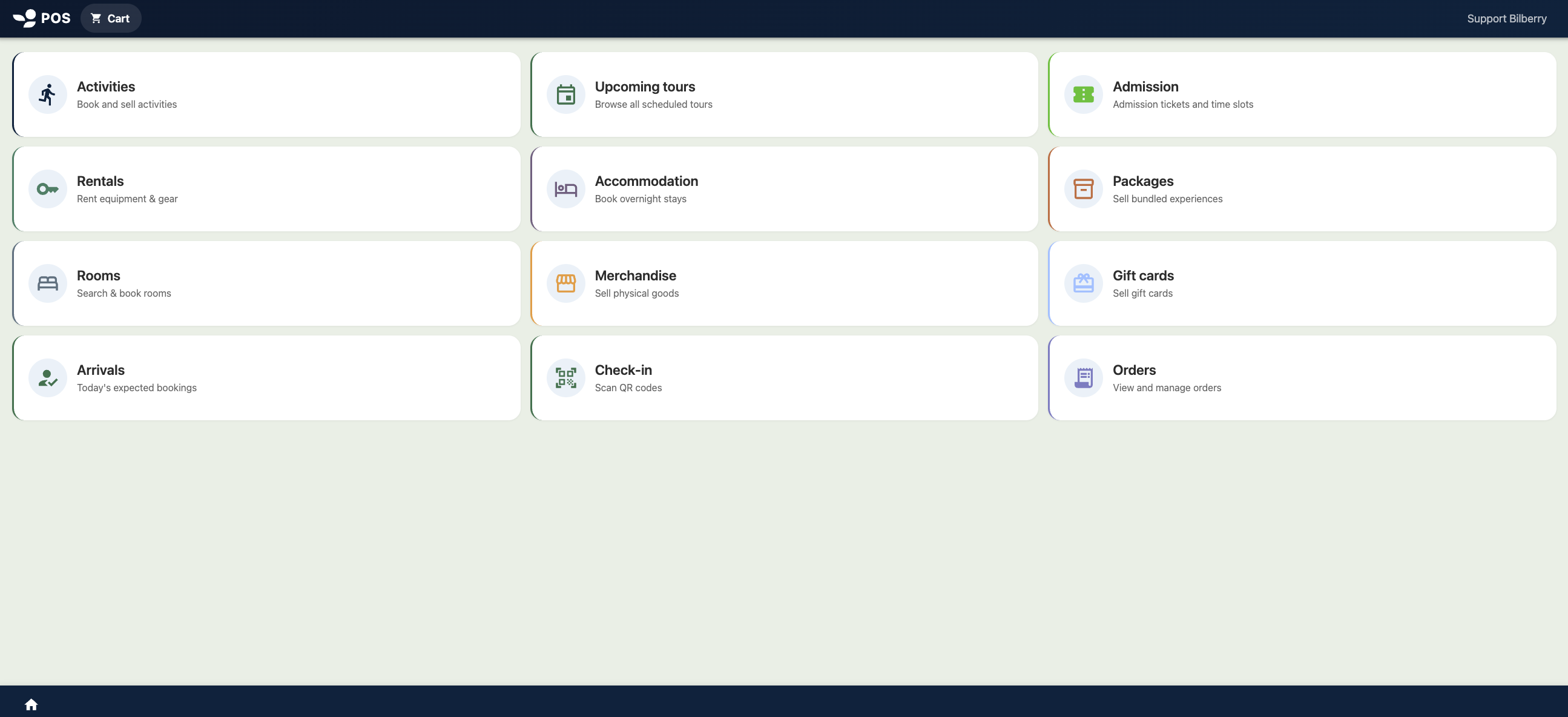
When you click on POS in the left main menu in Bilberry, you will be directed to a link where you see an overview of the POS front page:
Bilberry POS can only be viewed and used by users having an Operator or Admin role.
The POS front page is designed for use with a touch tablet. Tap or click any menu options, to execute your wanted actions. Under follows an overview of all possible menu options:
|
Menu option |
Description |
|---|---|
|
Activities |
Choose among your products' availability and add to cart. |
|
Rentals |
Choose among available rental units and add to cart. |
|
Rooms |
Sell accommodation by room with number of guests. |
|
Arrivals |
Overview of today's expected bookings and mark customers as arrived. |
|
Upcoming tours |
An overview of all planned tours on daily basis. |
|
Accommodation |
Choose accommodation options and add to cart. |
|
Merchandise |
Choose among physical goods for sale and add to cart. |
|
Check-in |
Easy check-in of guests with QR code or reference. |
|
Admission |
Choose among your timeslot products' availability and add to cart. |
|
Packages |
Sell combined experiences and add to cart. |
|
Gift cards |
Sell gift cards with optional amount and add to cart. |
|
Orders |
An overview where you can manage orders. |
What determines the different options you see on the POS front page are the types of products you already have in your Bilberry product list.
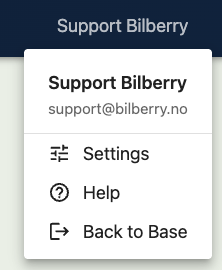
In the top right corner of the POS front page, you will see the name of the user you are logged in with. Click on this, and a drop down menu will appear →
Click Back to Bilberry and you are taken back to the original system.
Click Help and you are taken to our Help Center and this information article.
Click Settings, and the Device Settings appear:
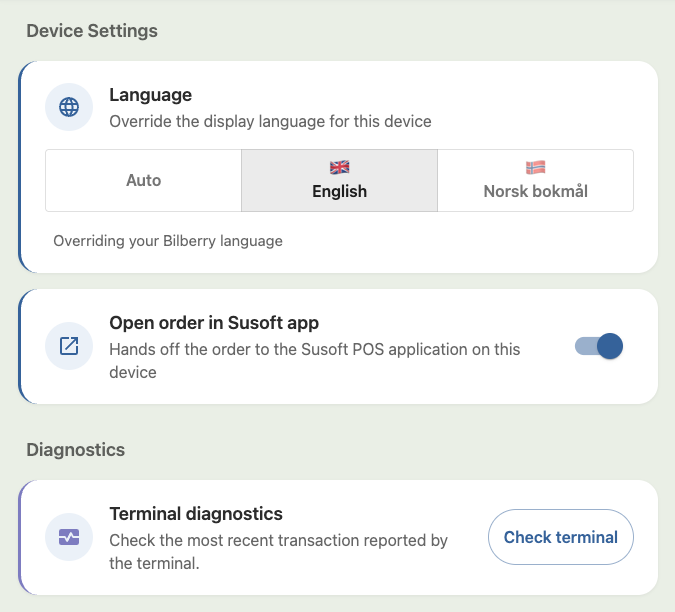
Under the Device Settings, the setting Open order in Susoft app will only show if you use Susoft for POS.
Receipt
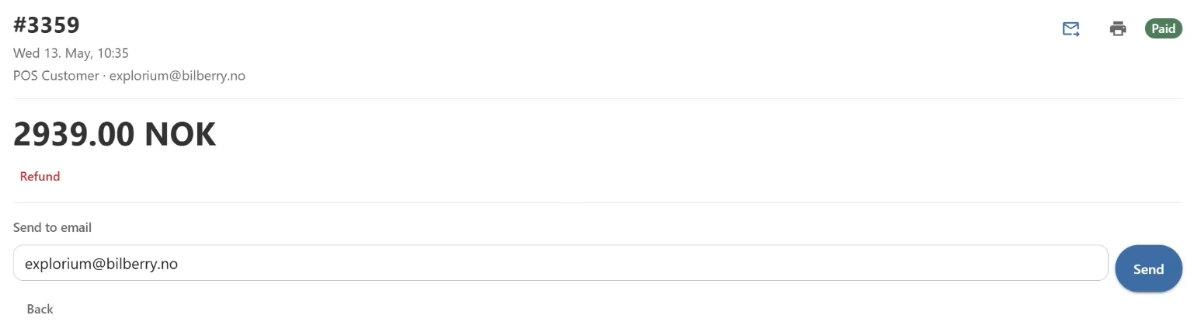
The NETs SmartPOS terminal has the possibility to print a small, standard paper receipt directly from the terminal after the order has been paid. It is also possible to send the receipt to the customer directly from the order on the terminal, as long as the customer provides you with an email.