

Nets Easy is an online payment platform that makes it easy to accept secure payments by card and other methods. In Bilberry it is possible to connect to Nets Easy to handle customer payments seamlessly directly through the system.
To be able to get the connection right, it is needed to copy different keys and codes found in the Nets Easy login portal, and add them to the Nets Settings.
You can access support/documentation from Nets Easy here. Other helpful links:
Step 1: Settings in Nets Easy
-
Log in to your Nets Easy account.
-
Navigate to the Main Menu.
-
Click Company.
-
Click Integration.
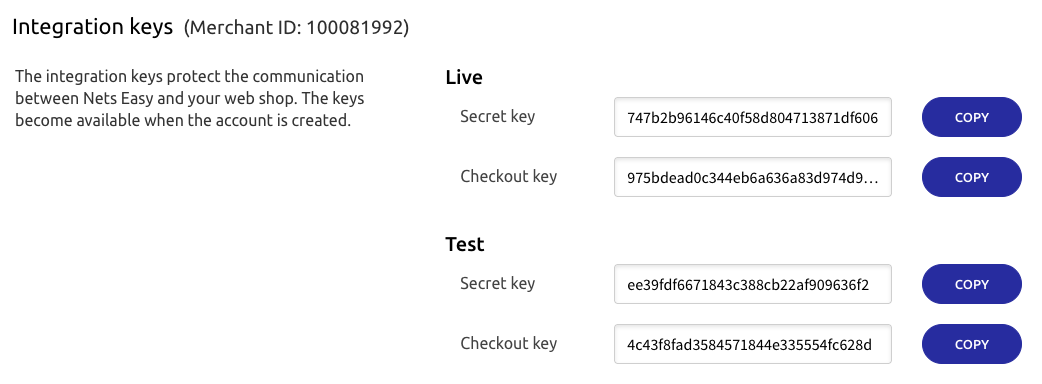
Here you find your Integration keys and Merchant ID. These are going to be copied and pasted into the Nets Easy Settings fields in Bilberry.
Step 2: Settings in Bilberry
Next steps will ensure the connection from the Bilberry side.
-
Navigate to the Main Menu.
-
Click Settings.
-
Click Payment provider settings.
-
Click the Nets Easy box.
-
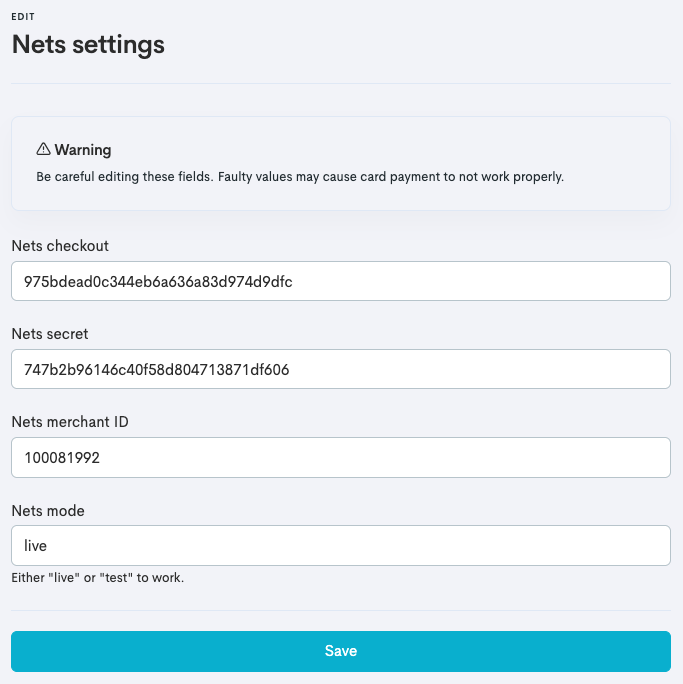
Paste your Merchant ID (a nine digit number, in this case 100081992) into the Nets merchant ID field.
-
Paste your live Secret key into the Nets secret field.
-
Paste your live Checkout key in the Nets checkout field.
-
Type live in the Nets mode field.
-
Click Save.
The integration is completed and Bilberry should now be capable of processing payments through Nets Easy.

Test a Payment
If you want to connect to a test environment before you go live, the same process is used as above, but with test keys instead. The Nets mode field should say test instead of live.
To be able to test through widgets, additional scripts must be added to the configuration code:
<script src="https://bilberry-widgets.b-cdn.net/dev/vendor.js" type="module" async=""></script>
<script src="https://bilberry-widgets.b-cdn.net/dev/main.js" type="module" async=""></script>
Before going live by starting receiving real bookings through Bilberry, we suggest contacting our Support Center to get test bookings deleted from the system – to start using the system with a clean slate.
When using a third party like PayPal through Nets Easy, a delay in the webhook communication can occur. If Bilberry does not receive the payment confirmation within 15 minutes, the order is automatically deleted (expected behaviour) — even though Nets may still process the PayPal payment. This can result in the customer being charged, but the order not being registered in Bilberry.
The solution to prevent this is to extend the due date minutes from 15 to 20-30 minutes. You edit this in the payment method settings:
-
In the Advanced section of the left main menu, click Settings.
-
Click Payment methods.
-
Click the three dots to the right of the payment method Online.
-
Click Edit.
-
Change the Due date minutes to what you want it to be.
-
Click Save changes.