In Bilberry, you can issue full, partial, or manual refunds. The refund process depends on your payment provider — some refunds can be handled automatically, while others must be processed manually.
Nets Easy vs Stripe
Nets Easy
Nets does automatically processes partial and full refunds, but does not automatically process manual refunds. If you perform a manual refund, you must also issue the refund in the Nets Easy portal.
Stripe
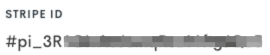
Stripe does not automatically process refunds of any kind in Bilberry. You have to manually process all refunds through your Stripe portal. You can find the Stripe ID on every order in the same box as you find the customer credentials. It typically looks like this:
Issue a Refund
Step 1: Navigate to the Order
-
Navigate to the Order you want to refund. There are two ways to find your order:
-
From the Order List:
Go to Dashboards → Order List → Search for the order. -
From the Calendar:
Go to Calendar → Month → Select the trip → Select the order under the Bookings section.
-
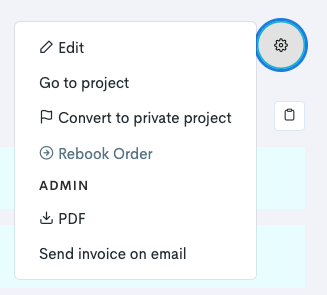
Click on the gear icon

-
Select Credit note.
-
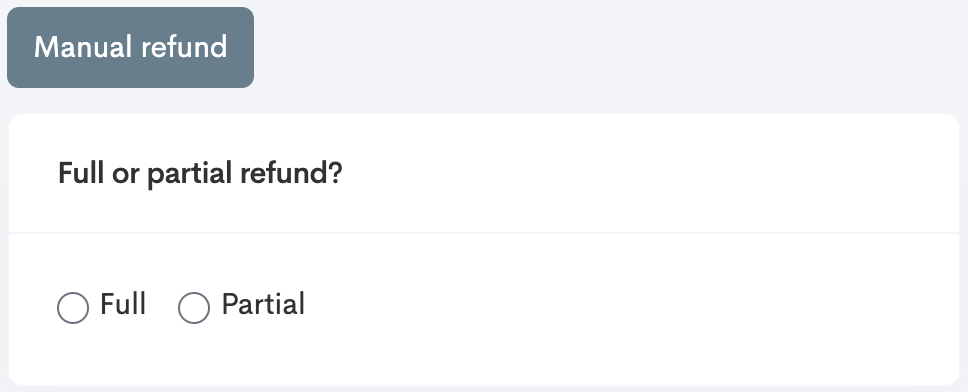
You can proceed with one of three options:
-
Manual refund: You can specify the amount you wish to refund to the customer.
-
Partial refund: Select this option to refund only a specific number of tickets rather than the entire order. For example, if you’re refunding only 1 out of 3 tickets.
-
Full refund: This will refund the total amount of the booking.
-
➡️ Continue with the steps below for the route you choose.
Step 2: Issue the Refund
Manual Refund
Nets Easy
Manual Refunds are not automatically processed by Nets. You must also perform a refund in the Nets Easy portal.
Stripe
Manual Refunds are not automatically processed by Stripe. You must also issue the refund in your Stripe account.
-
Click Manual Refund.
-
Enter desired amount in the Refund field(s).
-
Click Preform manual refund.

-
On the next page, check the box to confirm the message: Jeg bekrefter at jeg har lest og forstått refunderingen (English: I confirm that I have read and understood the refund).
-
Click Set as manually refunded.
-
Navigate to your payment portal (Nets Easy or Stripe) to issue the refund there.
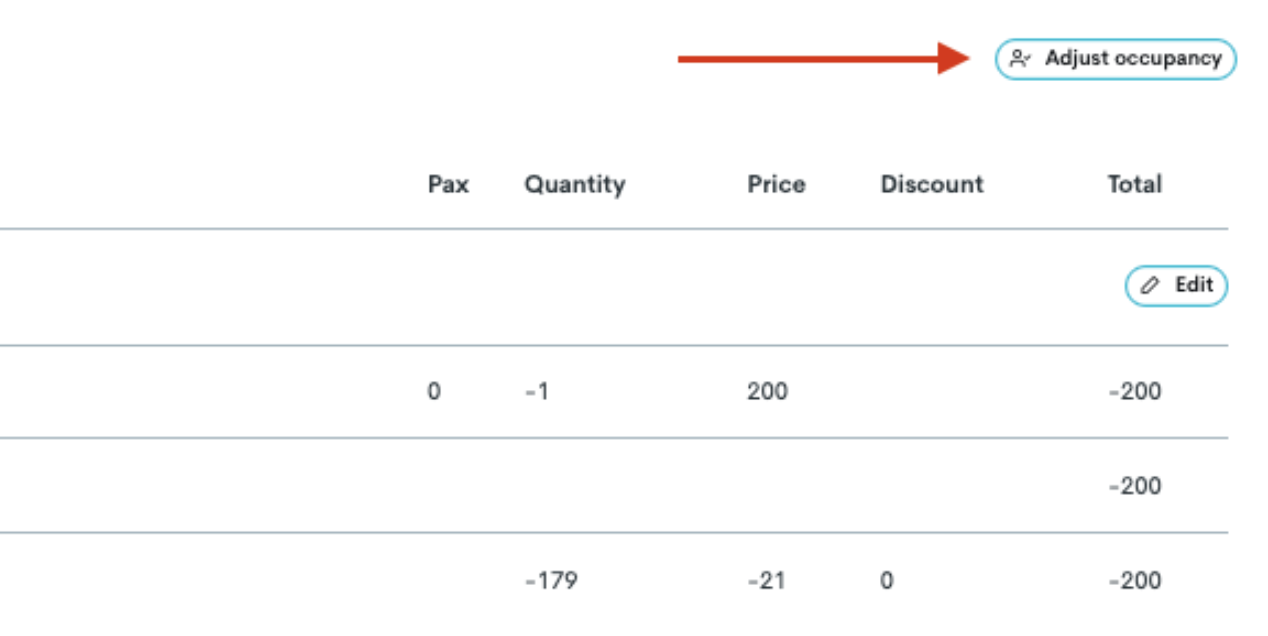
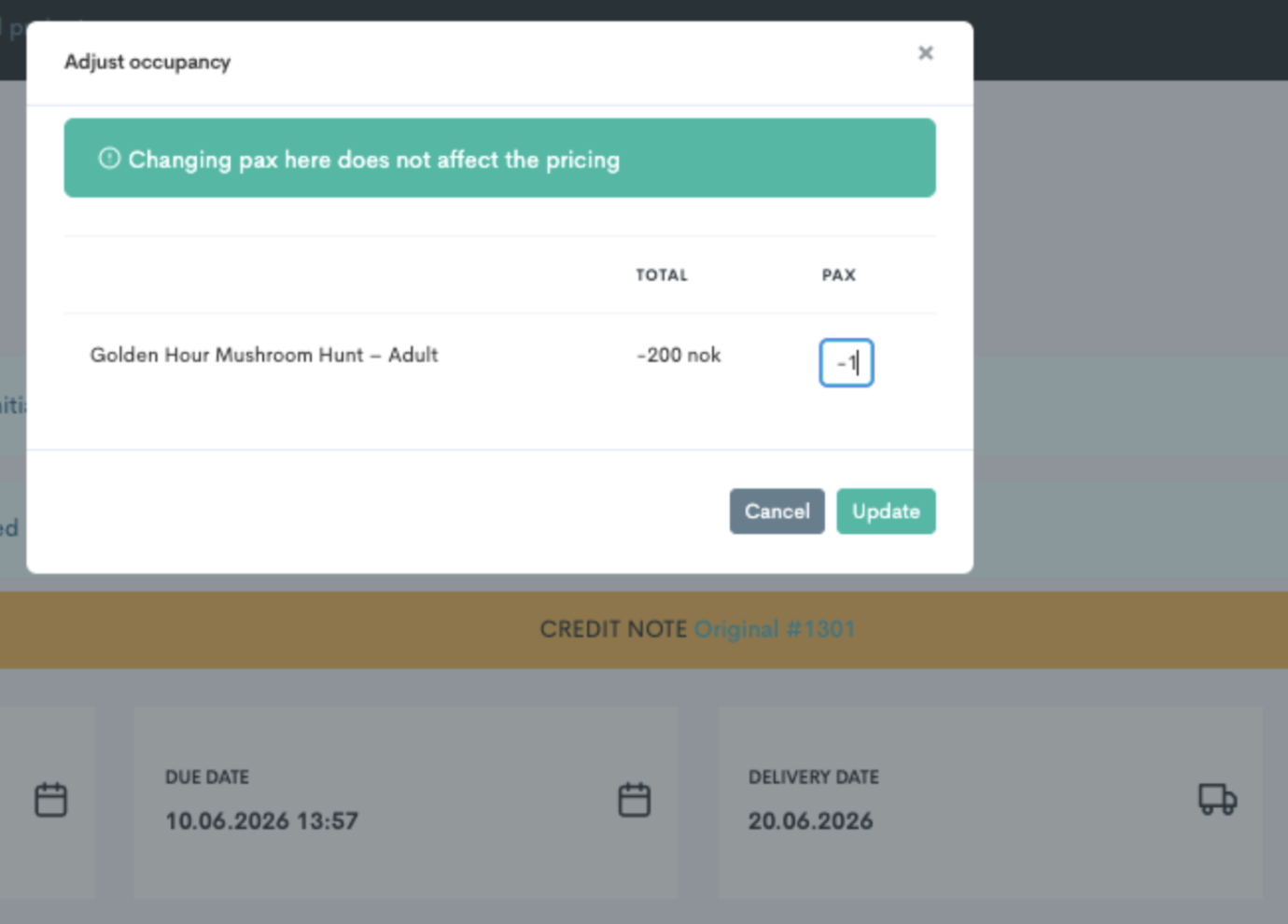
When doing a manual refund, you need to make sure the number of guests is adjusted too.
With full- and partial refunds this gets adjusted in the refund operation, but when doing a manual refund you have to remember to change the number of pax on the credit note by manually subtracting the refunded pax on the credit note.
Example: If you refunded 1 out of 4 tickets, the credit note should say -1 after adjusting.
Partial Refund
Nets Easy
Partial Refunds are automatically processed by Nets, so there’s no need to issue a refund in the NetsEasy portal.
Stripe
Partial Refunds are not automatically processed by Stripe. You must also issue the refund in your Stripe account.
-
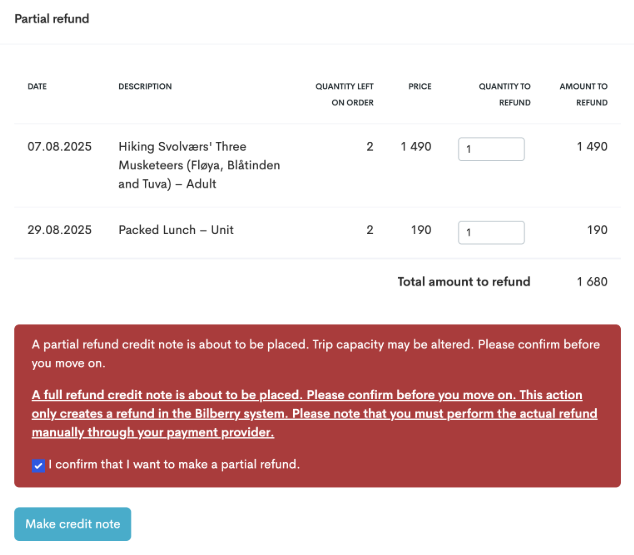
Select Partial.
-
Under Quantity to Refund, enter the number of tickets you want to refund.
-
Read the red information box carefully, then check the box next to I confirm that I want to make a partial refund.
-
Click Make credit note.
-
On the next page, check the box to confirm the message: I confirm that I have read and understood the refund.
-
NETS USERS: Click Refund through nets.
STRIPE USERS: Click Set as manually refunded and navigate to your Stripe portal to issue the refund.
Full Refund
Nets Easy
Full refunds are automatically processed by Nets, so there’s no need to issue a refund in the NetsEasy portal.
Stripe
Full refunds are not automatically processed by Stripe. You must also issue the refund in your Stripe account.
-
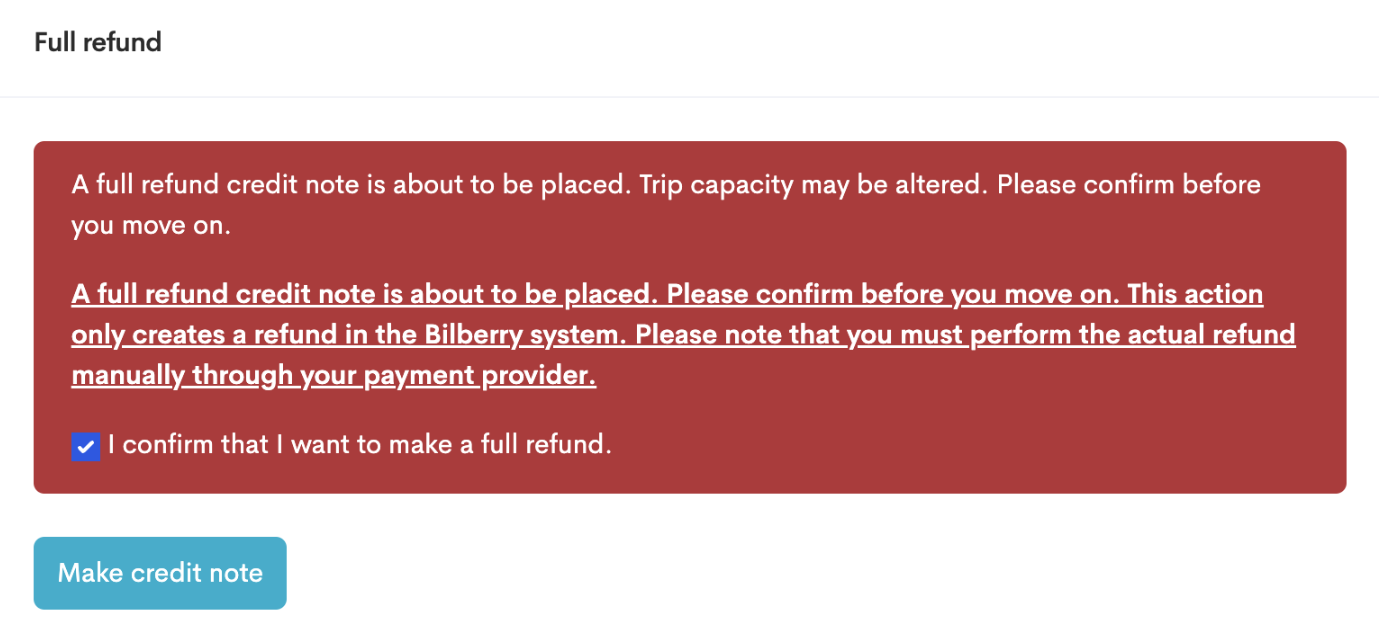
Select Full.
-
Read the red information box carefully, then check the box next to I confirm that I want to make a full refund.
-
Click Make credit note.
-
On the next page, check the box to confirm the message: I confirm that I have read and understood the refund.
-
NETS USERS: Click Refund through nets. This option only shows when doing a full/partial refund and Nets Easy is configured and active in your Bilberry account.
STRIPE USERS: Click Set as manually refunded and navigate to your Stripe portal to issue the refund.

The Credit Note
When the credit note is initialised and completed, this is what it looks like:
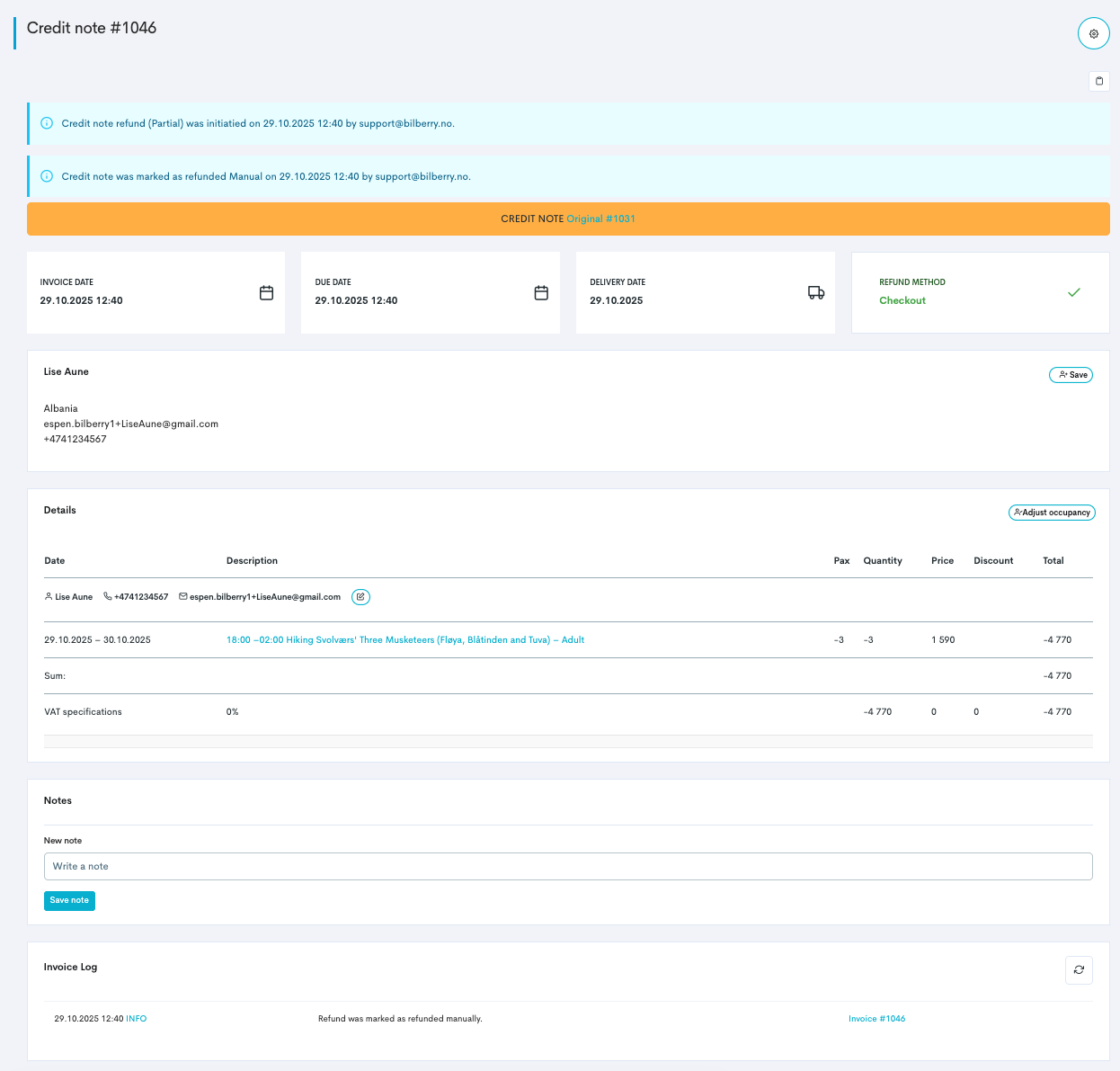
From the credit note, you can access the original order (from the yellow band note).
It is also possible to adjust occupancy/pax on the order, and this is needed if you do a manual refund (see note on manual refunds).
It is also possible to do edits to the credit note in the drop down menu to in the top right corner of the credit note.