

The deposit feature in Bilberry is a lightweight solution for customers who want to offer a partial payment solution to their customers when booking online through widgets. This is useful for activities where customers commit in advance but pay the full amount later.
Create a Deposit Payment Option
To enable and configure deposits you first need to contact our support team through our Support Channel and request enablement of Deposits.
Deposits are configured at the tour period level, not the product level.
After the Deposit Payment Option is confirmed enabled by a person in our support team, you can go ahead with the next steps:
-
Navigate to Projects in the left main menu.
-
Click Tour periods.
-
Click the Edit tour period prices button.
-
Click Settings.
-
Define the deposit amount you want to take for each price category.
-
Click Save.



Deposits are only working for tours where this is explicitly configured.
Deposit payment solution are only available when booking through widgets – not available through Point of Sales (POS) or agent bookings.
Deposit as Customer Faced
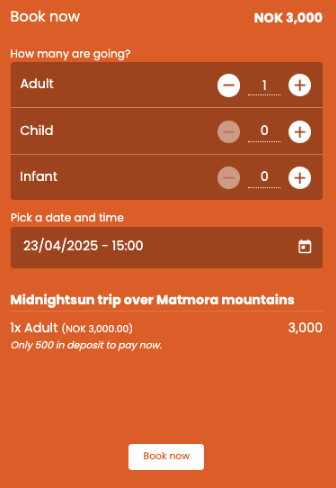
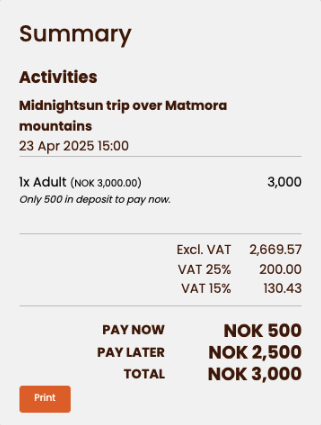
When deposits are enabled and set up correctly to be visible in the online customer booking flow, the widget will display both the deposit amount to be paid now and the full price of the activity.
Have a look at the examples to the different online booking stages:
Manage the Deposit
When a customer has booked a tour with the deposit payment solution, two separate orders are created in Bilberry:
-
One with the already paid deposit.
-
One which is the actual invoice, with the remaining balance.
A booked tour which costs 3000 NOK, and is enabled with a 500 NOK deposit, will result in:
-
A deposit order of 500 NOK (paid).
-
A second invoice order of 2500 NOK (not yet paid).
The actual invoice has to be manually followed up in one out of two possible ways:
1️⃣ Send a payment link.
The deposit will be automatically deducted and the order updated to paid when the customer pays through the link.
2️⃣ Mark the order as paid manually.
This is used if the payment has been settled in person where the payment is taken through either cash or bank terminal.