

If you have a tour stretching past multiple days, or your day tour consists of several projects (where different guides are being used), you can split your guides to different times.
Step 1: Activate Multi-Day on the Tour
By activating multi-day on a joined trip/tour, you will be able to split the tour trip into several days/projects. By doing this, personnel can be assigned to those different days/projects within the project.
-
Navigate to the calendar by clicking Calendar → Month.
-
Find the project/tour you want to make a multi-day tour and click on it.
-
Click the gear icon

-
Toggle on Multiday?
-
Toggled On
-
Toggled Off

-
-
Click Save. You will be taken back to the project card.
A joined trip/tour can be built this way if you want to reflect what the package consists of, but this will only be visible internally. A multi-day joined trip also does not reduce capacity on resources – it will only work for guides.
Step 2: Add New Parts to the Project
When the project is enabled as a multi-day tour, you can start adding the different components to it. Here’s how:
-
Within the Project card, navigate to the Program section.
-
Click Add.
-
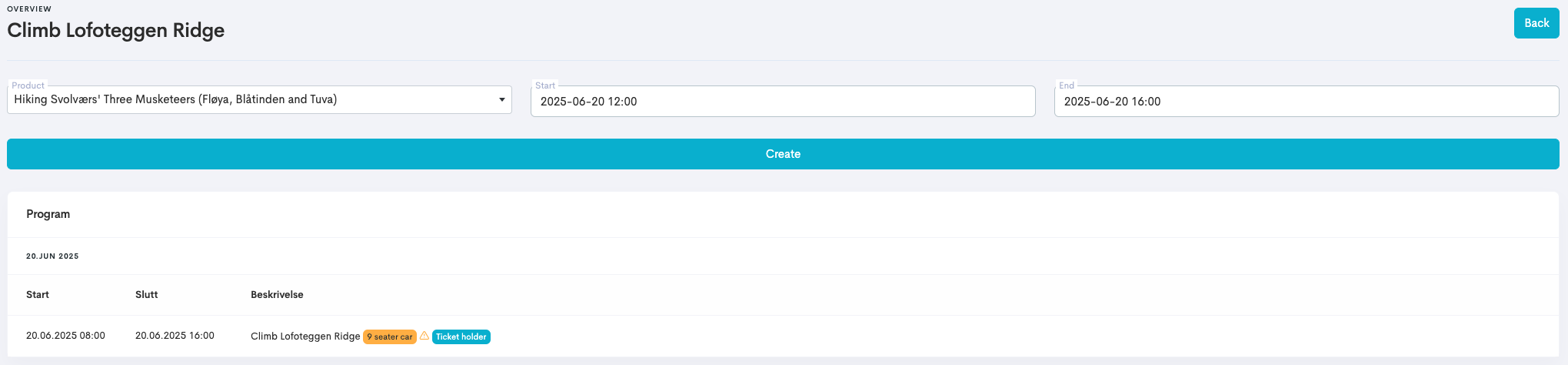
Start adding all parts of the project by picking a product from the list.
-
Set the products start and end times.
-
Click Create.
-
Repeat for all parts of the project.
Step 3: Assign Personell
View our guide Assign Tours to a Guide to learn how to assign guides to tours.