

If you often deliver the same type of program – for example a 7-day package with one or more activities and transfers per day – you do not need to build it from scratch every time. Save a finished private event as a draft, and reuse it whenever a new customer books the same program. All plans in the program are copied with their names, order and duration, so you only need to adjust dates, customer and details.
Drafts are ideal when:
-
You sell the same multi-day program to different customers or groups.
-
Each day contains several plans (activities, transfers, meals) that would otherwise be added manually one by one.
-
You want consistent naming and structure across all projects of the same type.
Create a Draft
Before creating a draft, you need to create a private event and build the complete program, with all activities, transfers and extras.
Have a look at the article Create a Private Event if you need help with this.
-
Inside the private event, click the Settings icon in the top right corner.
-
Choose Settings.
-
Check the Draft slide on:

-
Click Save.
The private event is now saved as a draft, and you can find it by navigating to the left main menu and clicking Projects → Projects → Drafts. You can create as many drafts as you need – one per program type is a good rule of thumb.
Give the draft a clear, descriptive name to easily recognize it.
Example: 7-day Winter Program – Draft
Create a New Private Event From a Draft
-
In the left main menu, navigate to Projects.
-
Click Projects.
-
Click Drafts. Here you see the list of all drafts.
-
Click the draft you want to use.
-
Scroll all the way down to Duplicate project.
-
Select the start date for the new project.
-
Select Include customer if you want the new project to be registered with the same customer.
-
Select Reset status if you want to reset the status (registered, confirmed, disproved) on the new project. If the draft was set to confirmed, it will revert back to the default as registered.
-
Click Duplicate Project.

A new private event is created with all plans from the draft. Every plan keeps its name, and dates and times are shifted relative to the new start date. E.g., a plan that was on day 3 in the draft will be on day 3 in the new project, but with new dates.
Edit the New Project
After the new project has been created, you need to still make some edits:
-
Navigate to the project you created.
-
Click the Settings icon in the top right corner of the project.
-
Go through the menu points General, Customer, Operations and Settings to make edits to this project. Make sure to add a Customer. If the customer is not in the list, you need to create this first.
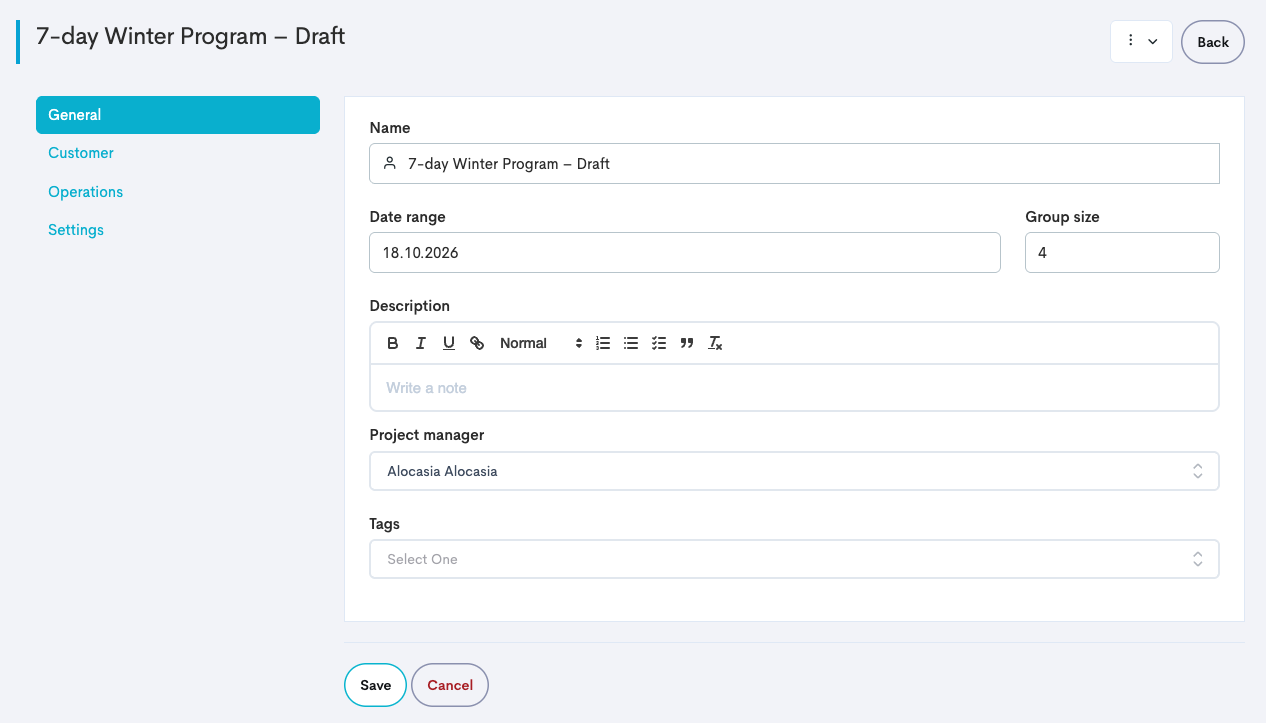
Go back to the project and go through the different tabs to make any further edits:

In the Program tab, adjust dates, times or plans where the program differs from the draft. In the Budget tab, check prices and budget before sending of confirming the offer. In the Customer tab, add a Point of Contact (POC).
Things that can be good to know
-
The draft itself is a regular project/private event. Changes you make to it later will apply to new projects created from it, but not to projects you have already duplicated.
-
Deleting or unchecking Draft in the settings removes it from the drafts list, but does not affect projects already created from it.
-
If you offer several variants of a program (for example 5-day and 7-day) by creating one draft per variant instead of editing the copy every time.
-
It is possible to duplicate any project, also a non-draft one.