

Booking Requests let customers ask for availability or custom offers before a booking is confirmed.
Requests can come in through the booking request widget on your website, or from outside the system via email or phone.
All requests are handled in the back office, where you can review details, adjust the offer, and respond to the customer. Once accepted, a booking request can be turned into a confirmed Offer (as a Private Event) and be paid either through invoice or an online payment link.
Customer View
There are two ways a request can come to you from your customer:
1️⃣ Outside the Bilberry system, e.g. through telephone, mail or showing up in your reception.
2️⃣ Within the Bilberry system, through a request widget on your website.
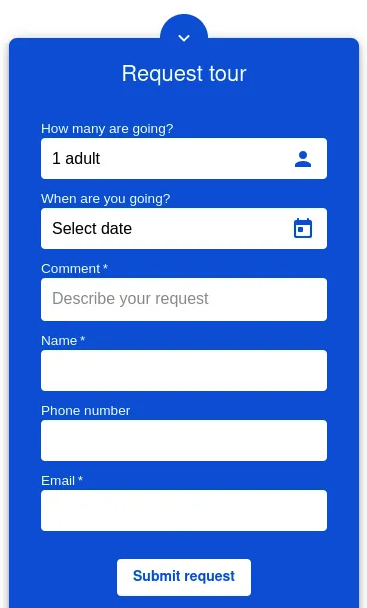
There are two different request widgets to choose from, as shown under.
When sending in a request through the request widgets, the customer fills in the information fields, and receives a confirmation email upon sending it. This request will then land in the leads overview in Bilberry.

The Leads Overview
-
In Bilberry, navigate to the upper right corner where you see three icons.
-
Click the Leads button.
This takes you to the Leads overview, where you find an overview of all your incoming and archived requests.

A Request turns in to a Lead when it lands in Bilberry, hence why it is called the Lead overview.
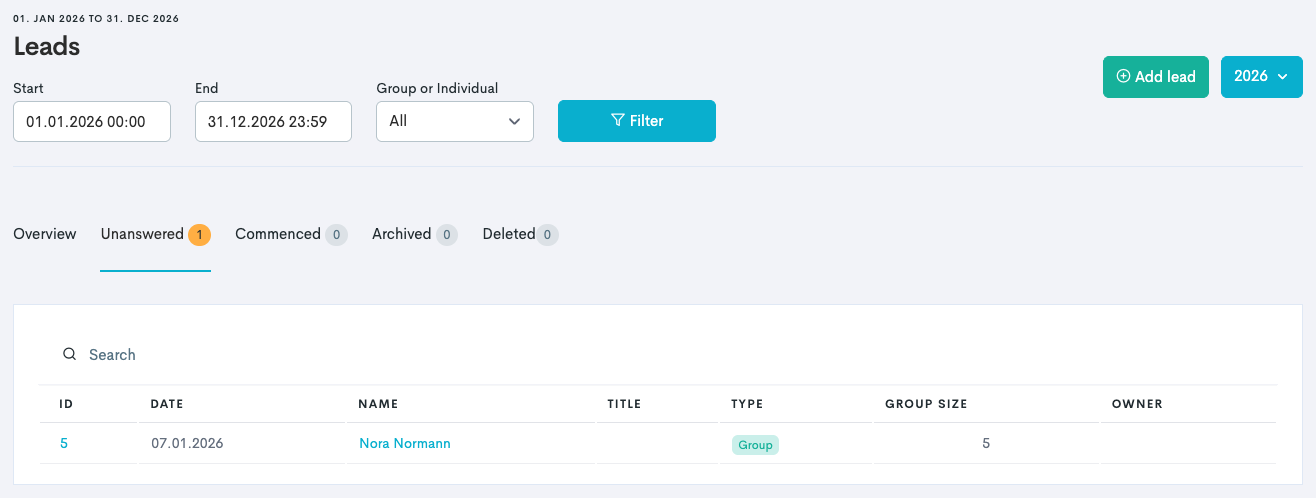
It is possible to filter requests coming in to a set period, and/or by the type of request (groups or individuals). You can also filter through the status of the request; Unanswered, Commenced, Archived and Deleted. Leads coming in through the connected request widget will show up in the Unanswered tab.
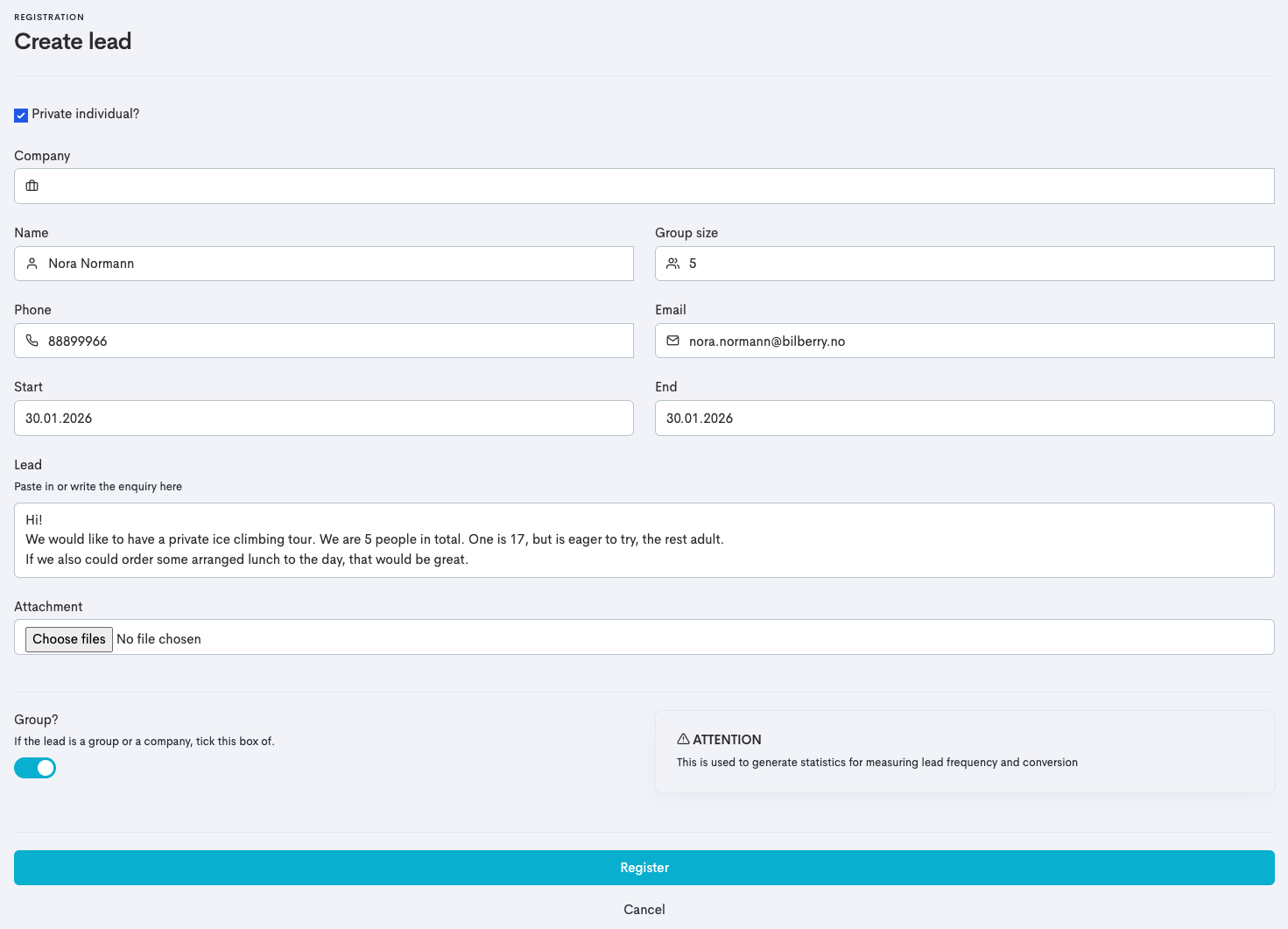
You can also create a lead manually by clicking the green Add lead button. This is the procedure if a request is coming in outside the Bilberry system.
Handling a Request Coming From Outside the System
If you are not using the request widgets, or receive a request outside the Bilberry system through phone or email, you can create a request in Bilberry manually.
-
In the Leads overview, click Add lead in the upper right corner.
-
Fill in the information you got from the customer on phone/email.
-
Click Register.
The lead is now created, and you can follow steps 1-3 in the next section to assign the lead to you or someone else, to start communicating with the customer.
Handling a Request Coming From Inside the System
The first thing that is needed to do with any lead is to either assign it, either to yourself or to someone else in your team.
Leads can only be assigned to Bilberry users with admin user access.
-
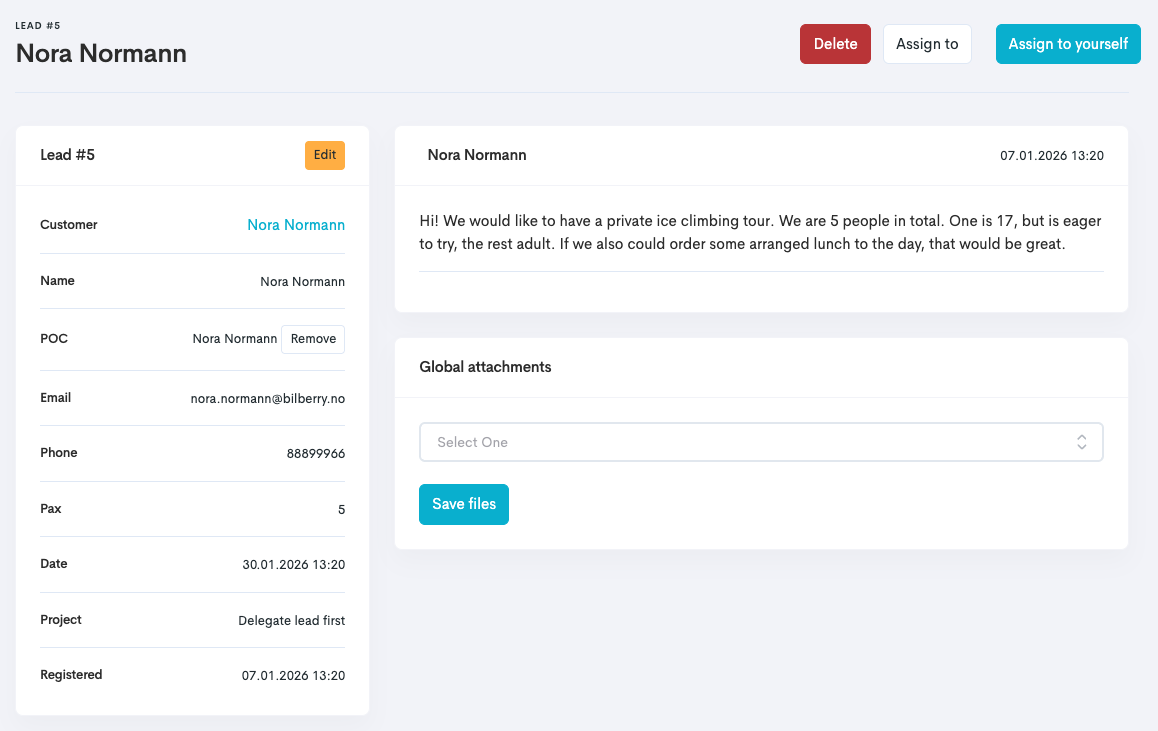
In the Leads overview, click on the unanswered lead by either clicking the ID number or the customers name.
-
In the top right corner, click Assign to yourself or Assign to to delegate to someone else.
-
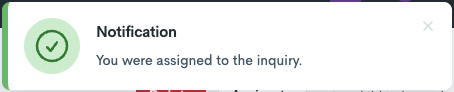
You should get a notification in the top right corner saying the assignment was successful.
When the lead has been assigned to an admin user, a conversation opens up and the lead looks a bit different than before:
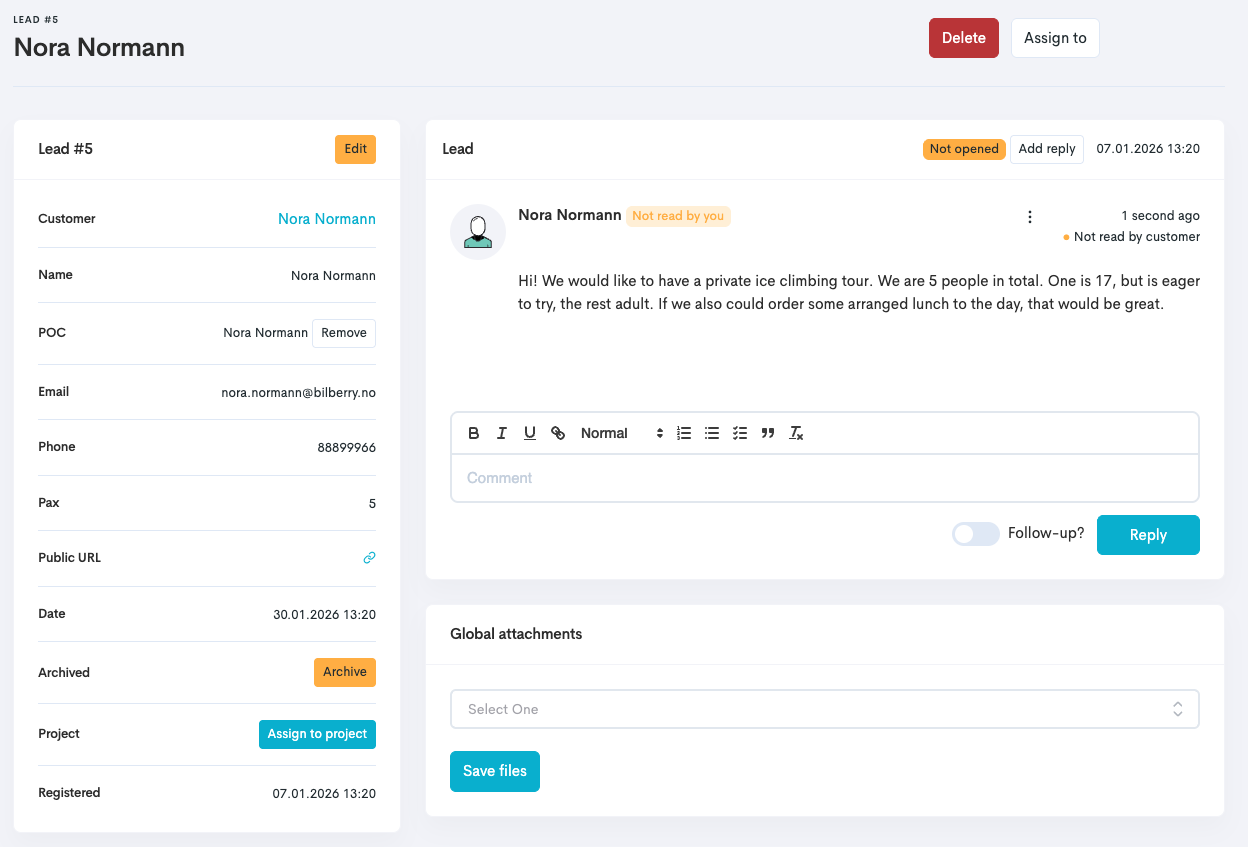
From here, the assignee can reply to the customers request through the comment box. The answer is sent by email to the customer.
This is the stage where you can ask further questions to the customer, or tell them you will send them an offer out of what they are asking.
When assigning the lead, the person sending in the request is automatically created as a POC (Point Of Contact) with the email and phone number attached. This is needed for you to be able to send an invoice to the customer later on.
You can find the full customer list by clicking Customers → Overview in the left main menu.