

The integration between Bilberry and Viator allows you to connect your products and availability in Base with the global travel marketplace of Viator. Manage inventory, pricing, and bookings in one place, while reaching a wider audience through Viator as a activity distribution platform.
Bookings made on Viator are automatically synced into Bilberry, reducing manual work and helping you maintain full control and oversight across all sales channels.
Bilberry supports integrations with the following Online Travel Agencies (OTAs):
To integrate Bilberry with Viator, please send in a request through our Support Channel. They will prepare your Bilberry instance for the integration and enable access. Please provide the API supplier ID and API key in your request.
Once this is done, an additional button will appear in the product list → 
Initialize Integration in Viator
-
Log in through the Viator Supplier Log in.
-
Click your company name in the top right.
-
Choose Account.
-
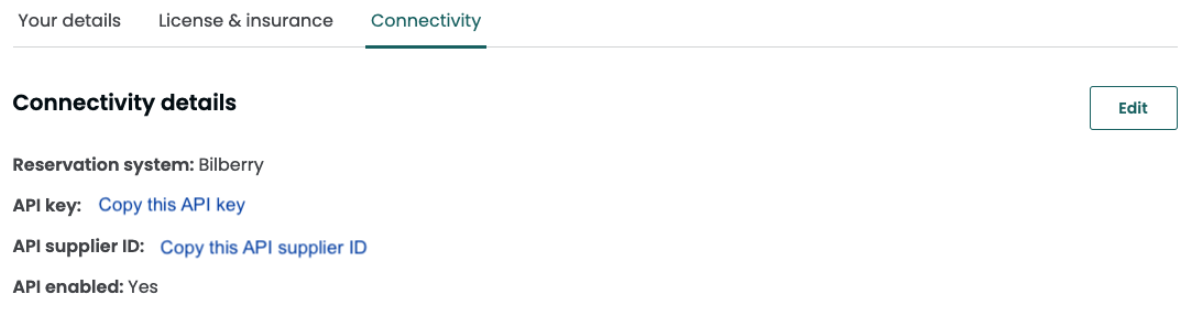
Click the Connectivity tab.
-
Choose Bilberry as your Reservation system.
-
Copy the API supplier ID and API key and send it to Bilberry through our Support Channel where you also ask for the integration to be activated by the team.
Enable Viator Settings in Bilberry
When the support team has prepared the Bilberry instance for the integration, you can go ahead and add the settings in Bilberry:
-
Navigate to your product list (Products → Products).
-
Click on the Viator icon
-
You can also click the product name and then click the Viator tab.
-
-
Fill inn the Destination information:
-
Country
-
Destination code (UN/LOCODE)
-
Destination name
-
Viator requires UN/LOCODE information about where the activity takes place. In order to find the correct code, go to UNECE list of Country and Territory. Search for your country, then for your destination.

-
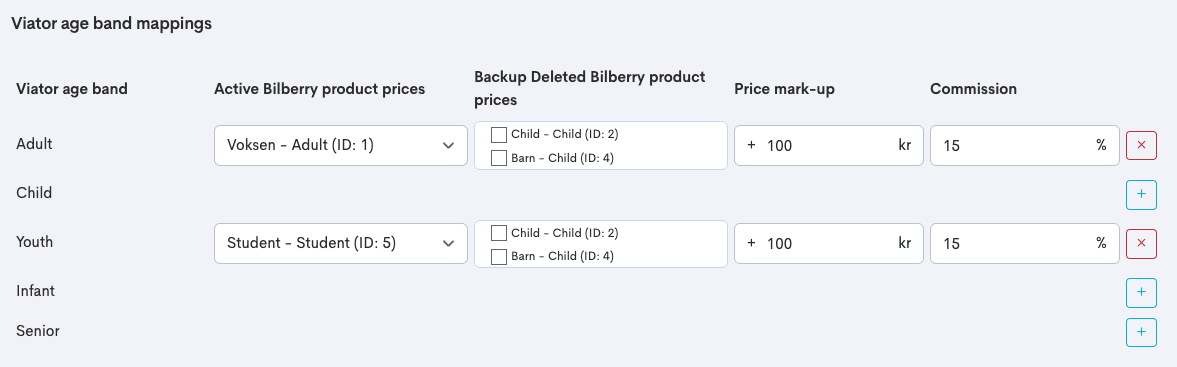
Fill inn the Age band mappings:
|
Field |
Description |
|---|---|
|
Active Bilberry Product Prices |
There are five different age band categories in Viator; Adult, Child, Youth, Infant and Senior. At least one of these categories needs to be mapped for the product. Map the tickets you have in Bilberry to the corresponding one in Viator. |
|
Backup Deleted Bilberry product prices |
When prices are deleted from the product, they will appear in this list as Backup prices. If any of these might be in use on any of the upcoming published tours, we recommend ticking of the appropriate ones. |
|
Price mark-up |
A mark-up increases the product price on the Viator side, and can be used to cover extra costs or increase profit.
If the product costs 1 000 NOK in Bilberry, and you add a mark-up of 200 NOK, the price displayed and sold to the customer in Viator will be 1 200 NOK. |
|
Commission |
Enter the commission percentage that Viator takes for the given product. If the value entered does not match Viator’s actual commission, it can cause follow-on errors and result in inaccurate reports. |
-
Fill inn the Guestlist Mappings (Optional): The Viator integration can supply information about the guests and these fields can be mapped to the guest list fields in Bilberry, but only limited to Name and Surname, Title and AgeBand.

-
Click Save Viator Integration.
Product Settings in Viator
When the settings have been added and saved in Bilberry, the next step is to add the product settings in Viator.
After enabling the Viator settings for products in Bilberry, it can take up to 12 hours before you can proceed with the steps in Viator. This is because Viator collects information from Bilberry every 12 hours.
Go ahead with the following steps to connect the products:
-
In Viator, go to your Product list.
-
Click Manage on the desired product you want to connect with Base.
-
Click the Product connection tab.
-
Click Connect.
-
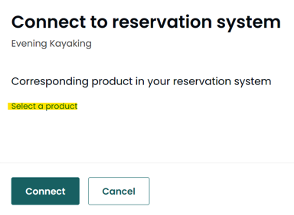
Click Select a product.
-
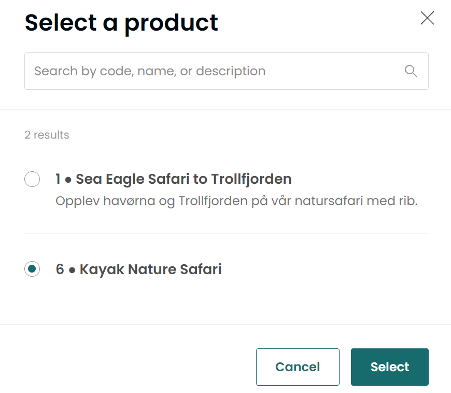
Select the product from Bilberry you want to connect.
-
Click Select.
-
Choose a Supplier Option (typically STANDARD).
-
Click Connect.
For more information about this, you can visit Viator's own guide on how to connect products to the Viator API.
Using a QR code
A QR code can optionally be displayed on the Viator tickets, which can be used to register the arrival of customers in Bilberry by scanning the QR code.
-
Go to the Tickets tab on the product you just connected.
-
Ensure Ticket redemption is set up as follows:

When a booking is made in Viator, a placeholder reservation is automatically created in Bilberry. This placeholder holds the spot until the booking is either completed in Viator, deleted, or times out.
The placeholder booking uses the email address placeholder@bilberry.no and will be replaced by a real booking if the reservation is successfully completed and paid for through Viator.
If a booking is cancelled in Viator, the cancelation will trigger a full refund of the order in Bilberry. This voids the order.
Limitations
There are some limitations to the integration between Viator and Bilberry to be aware of when using it, to avoid any mishaps.
If an end-customer does a partial refund through the Viator portal, e.g. changing the booking quantity from 5 to 3 tickets, this information is sent to Bilberry.
When receiving this information, Bilberry does a full refund on the original order and creates a new order with the updated number of guests.
If a customer books a tour through Viator for a discounted price (e.g. by using a promo code) the booking will still come in to Bilberry with the original price on it. Bilberry does not see the price change.
Example: The original tour price is 1000 NOK, but a 20% discount code enables the customer to buy it for 800 NOK. The order will still come from Viator in to Bilberry as 1000 NOK.
You will be able to distinct the numbers in the reports:
Go to Finances → Turnover and VAT → Per order → Filter on payment method to Viator → Compare the OTA PAID and OTA DIFF fields in the table.

Bilberry does not support a case where Viator is going to refund money, but keep the amount of guests/tickets stay unchanged.
When you change the price of a product in Bilberry, the price does not automatically sync to Viator. Therefore, when you update the price in Bilberry, you also need to update the price in the Viator portal to ensure they match.
Connection Troubleshooting
If you have trouble with the connection between Viator and Bilberry, you can follow the tips under to troubleshoot and possibly solve the issue yourself.
Product Connection Tab in Viator
This section indicates whether the product is correctly connected to Bilberry. If the product is not listed as connected, integration may not be properly set up.
Schedules & Prices
Ensure that schedules and pricing in Viator match those in Bilberry. Check the availability settings to confirm alignment. Bilberry does not automatically sync prices to Viator.
Further Troubleshooting
If everything appears correct in Viator, but issues persist, check the following in Bilberry:
-
Availability in Bilberry: Make sure the product has availability in Bilberry and that the availability is not set to closed and/or locked, and that the start times matches with those in Viator.
-
Correct Price Setup: Make sure the prices are linked up correctly (including backup prices), and that no prices are set to be 0,-.
-
Price and Availability Alignment: Make sure the prices match the actual availability and that the prices mapped in Bilberry are configured on the Viator product. When changing a price in Bilberry, you often need to do this on the availability, and not only in the general product settings.
-
Different Price Types: Keep in mind that all price categories added to the same Bilberry product, needs to have different price types to work properly.
-
Caching Delays: Changes in Bilberry may take up to 24h to reflect in Viator due to caching time.
If none of the steps above resolve the issue, further investigation may be needed and you can contact our support team through our Support Channel. Make sure to describe your issue thoroughly!