

The Supplier View shows what a supplier can see when granted access through a Supplier Log-in.
Suppliers use this log-in to view and manage information about bookings where they provide resources or services to the company that owns the Bilberry account.
A supplier can have two different user roles in the system; supplier or supplier+. Read more about these in the article about User Roles & Permissions.
View Details
When a supplier logs in to their Supplier Portal, their main menu on the left will look slightly different from that of an admin user.
In the Mails section, suppliers can view an overview of all messages related to their bookings.
In the Your Calendar section, suppliers have access to a calendar view showing all tours and activities that use their supplied resources.


The supplier can click themselves into each tour to be able to collect more details on the specific tour, such as program (date/time), contact information for the people that have booked, guest lists (can be exported), edit the max entrants and close the tour etc.
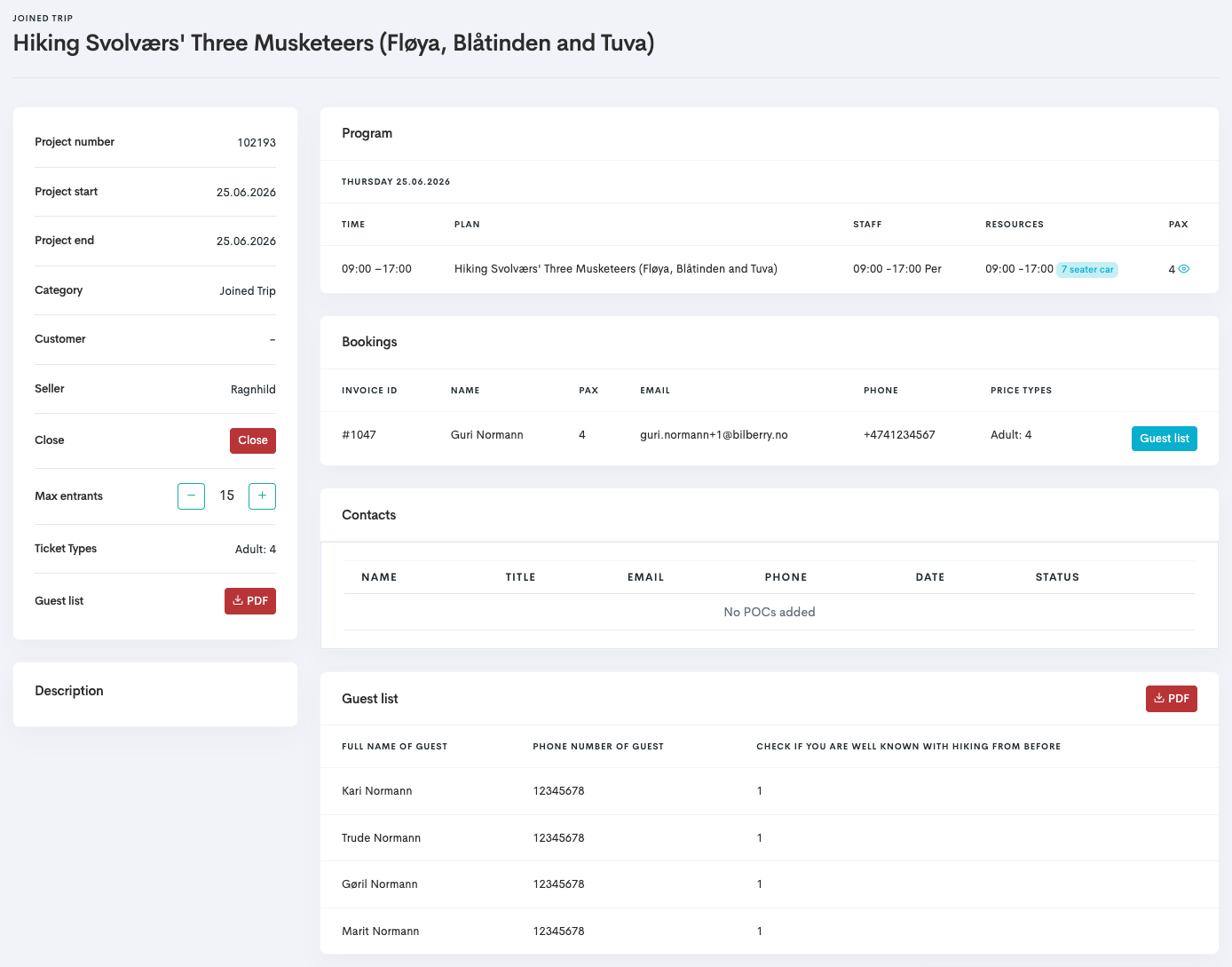
It is only the supplier+ role that will be able to edit the max entrants count and close the tour.
When the supplier+ closes the tour, it cannot be re-opened by them again.
View Guest List Information
-
Navigate to the Project/tour by going to Calendar → Month → select the project you want to view.
-
Find the Bookings section.
-
To view the Guest list fields:
-
Click the Guest list

-
Scroll down until you see the Guest list section.
-
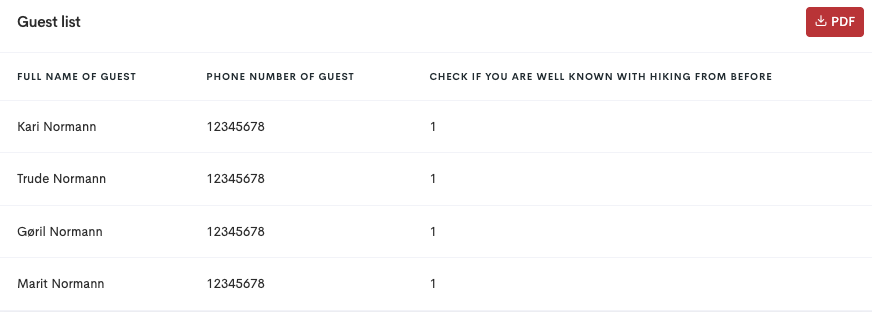
It is possible to export the guest list as a 
You will find this option either in the left menu of the Joined Trip supplier view, or in the top right corner of the Guest list section.