Add New Membership User
-
Navigate to Membership → Members.
-
Click Add.
-
Fill in the personal information fields and click Create.
If the user is already registered as a member, you will be taken to the membership card that was previously stored. If it is a new user, they will receive an email informing them that they have a new account and will be asked to activate the account and set a password.
Transfer a Value Card to Another User
-
Navigate to Membership → Members.
-
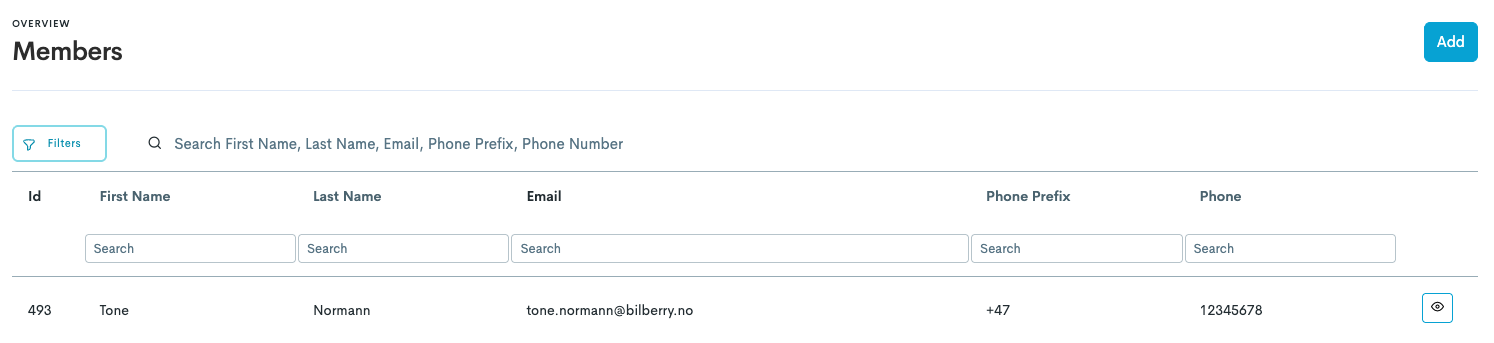
Search the customer holding the membership card by member ID, name, email, phone, or address.
-
Click the eye icon

-
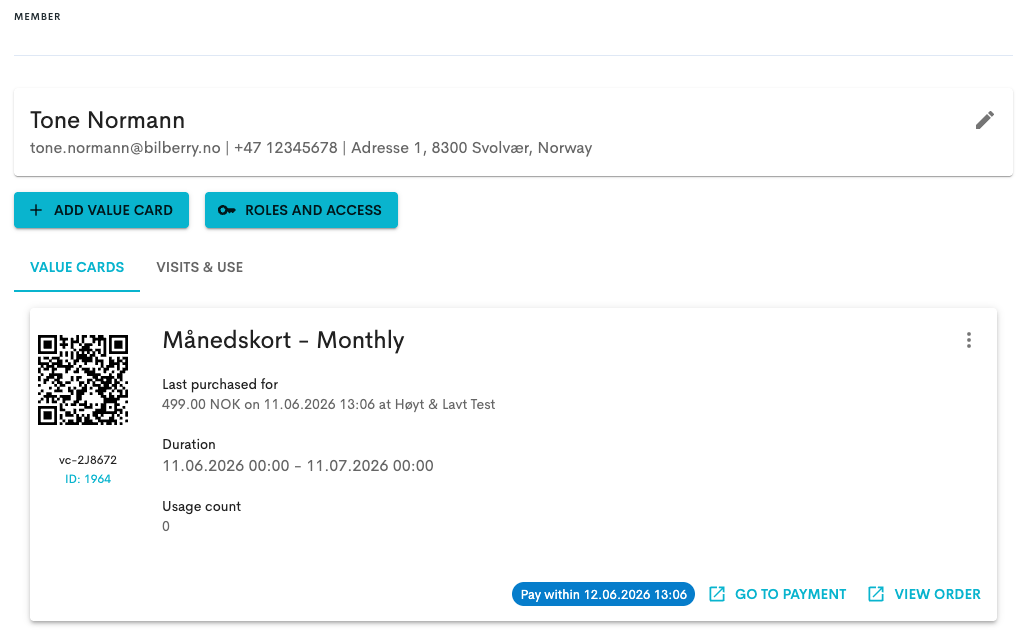
Click the three dots to the right of the value card that is being transferred.
-
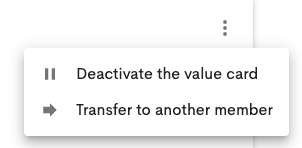
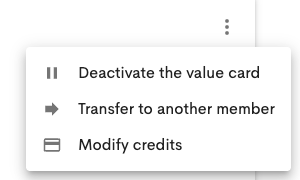
Click Transfer to another member.
-
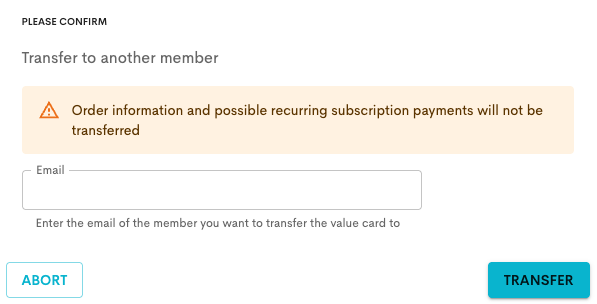
Fill in the email address which will receive the email about the transfer.
-
Click Transfer and the value card is transferred.
The email needs to be tied to a user. If a customer does not exist yet, you need to create the customer before transferring.
Register Credits on a Punch Card
-
Navigate to Membership → Members.
-
Search the customer holding the membership card by member ID, name, email, phone, or address.
-
Click the three dots to the right of the value card.
-
Click Modify credits.
-
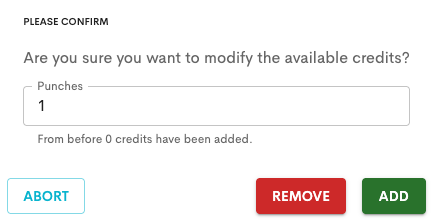
Type in the number you either want to remove or add to the punch card.
-
Click Remove or Add.
Refund Membership Orders
-
Navigate to Membership → Orders.
-
Click the eye icon
-
Click Full refund or Partial refund.

Send Receipt triggers an email with the receipt sent to the customer's email.
Full Refund
This will make a refund of the total amount of the booking, including all the tickets on the order.
Select the refund method:
-
Original payment method (Nets or POS) – the payment backtracks automatically to the customer by the same method it came in.
-
Refund to a new gift card – a gift card is created which the customer can use on a later time.
-
Other (cash, bank transfer, etc.) – refunded by other, non-system related methods.
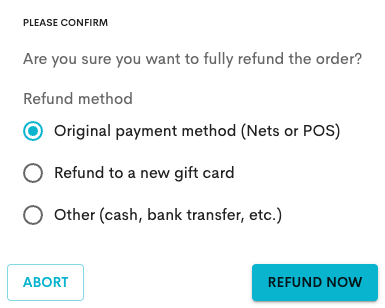
If the order was partially paid with a gift card, the gift card will be refunded first and the remaining amount will be refunded to Nets or POS (when selecting original payment method as refund method).
Partial Refund
This will make a refund of a partial amount of the booking where you can select a number of tickets from the total amount of ticket sin the order to refund.
-
Enter the amount of money to refund to customer. The amount should be less than or equal to the total amount of the order.
-
Enter the number of tickets to release in Bilberry. This will free up capacity to allow other customers to book the tickets.
-
Select refund method:
-
Original payment method (Nets, POS or Giftcard) – the payment backtracks automatically to the customer by the same method it came in.
-
Other (cash or bank transfer) – refunded by other, non-system related methods.
-
Refund to new gift card – a gift card is created which the customer can use on a later time.
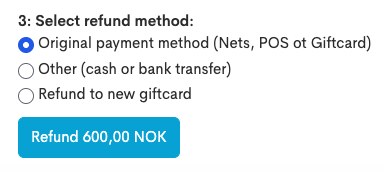
If the order was partially paid with a gift card, the gift card will be refunded first and the remaining amount will be refunded to Nets or POS (when selecting original payment method as refund method).
Deactivate a Value Card
-
Navigate to Membership → Members.
-
Search the customer holding the membership card by member ID, name, email, phone, or address.
-
Click the eye icon
-
Click the three dots to the right of the value card that is being refunded.
-
Click Deactivate the value card.
-
Click Deactivate now.