

WIX as a CMS system has a slightly different way to add widgets to a page than other CMS systems.
Step 1: Allow Domain (CORS)
Cross-Origin Resource Sharing (CORS) controls which domains are allowed to integrate and use our widgets securely. This ensures that our widgets function seamlessly only on pre-approved websites, protecting against unauthorized requests.
It is possible to add as many domains as needed to display widgets.
-
Navigate to Widgets in the left side menu.
-
Click Widget settings.
-
Click the Token tab.
-
Type or paste the domain into the Add domain field.
-
Click Add and the domain will appear in the list of allowed domains.

Remember to add your testing domain as well, if you have created a test page in WIX.
Step 2: Add the Bilberry Configuration Code
-
In the WIX left side menu, click the All sites dropdown in top left corner.
-
Click the site you want to add the code to.
-
Click Settings in the left side menu.
-
Scroll down to the Development & integrations section, and click Custom Code.
-
Click Add Custom Code.
-
In Base, navigate to Widgets → Widget Settings.
-
Review the Quick Setup tab and ensure all is correct (colors, url to terms/privacy, logo url etc.).
-
Click the Embed Code tab.
-
Copy both blocks of code (Configuration script and Colors and fonts).
-
In WIX, paste the two blocks of codes into the section where it says to paste the code snippet.
Remember to always paste the Configuration script first and on top in the section, and the Colors and fonts-code below this.
-
Name the custom code Bilberry Config Code for easy recognition.
-
Select the option to add codes to All pages and Load code once.
-
Select the option to paste the code in Head.
-
Click Apply.
Step 3: Add Widgets to Sub Pages
WIX does not support to view widgets in preview mode. The easiest thing to do is to create a test page and publish this to check if the widgets show up and how it looks.
Create a Test Page
-
Click on Page → Manage Pages → Add Page.
-
Once the page is created, click on the three dots and select hide.
Once you add widgets, you’ll have to publish and go to the page URL, and refresh to see the widgets.
Add the Widget
-
Go to your Test Page (or new product sub-page).
-
Click Add Element (the + sign in top left corner).
-
Click Embed & social.
-
Click Custom Element.
-
In the element box that embedded on your test page, click the Choose Source tab.

-
Select the option to add your script file with Server URL.

-
Copy and paste the Server URL found in the widget library in the WIX Specific dropdown of the specific widget that you want implemented.
-
Scroll down to Tag Name.
-
Copy and paste the Tag Name found in the widget library in the WIX Specific dropdown of the specific widget that you want implemented.
-
Exit the window.
-
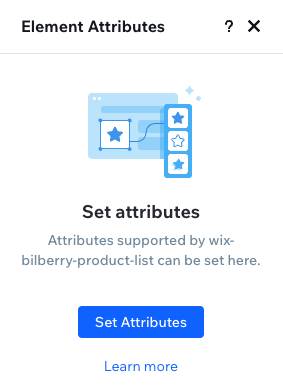
Click the Set Attributes tab.

-
Click the Set Attributes button in the popup window.
-
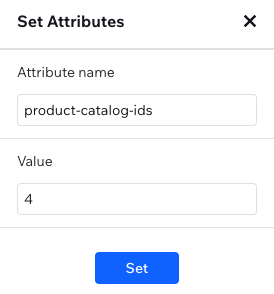
Copy and paste the required Attribute Name.
This is called a Parameter in our documentation. You can find this in the widget library in the Parameters and examples dropdown of the specific widget that you want implemented. -
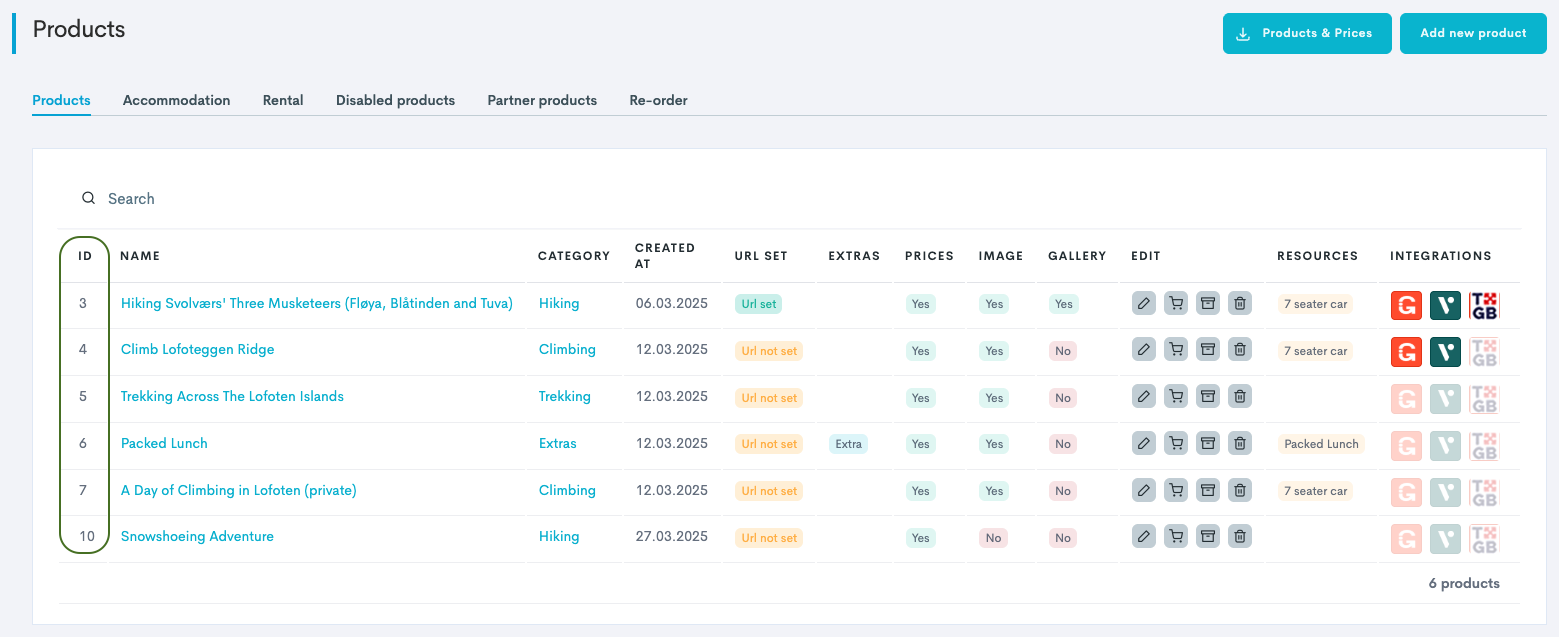
Type the Value to be the product ID of the product that the widget is being connected to. You find the product ID in the product list inside Bilberry: Products → Products.
-
Click Set.
You can add several attributes (parameters) if you want. As minimum, there need to be one, and it needs to be the one that is marked as required in the Parameters and exampled dropdown in the widget library. -
Exit the window.
An attribute (or parameter) defines how the widget behaves, looks, or what data it displays.
It is a setting that controls a specific aspect — for example, the color, size, text, or which information the widget should show. Changing an attribute changes how the widget appears or functions.
🔁 Repeat the steps if several widgets are being implemented.
When the page is ready with all the different widgets implemented, you need to publish the page to be able to view how the widget looks. This is a limitation of WIX. If you selected hide when creating the page, it will not show on your website when publishing.