
When you work with agents, there are two things to keep track of: invoicing them for bookings made through the agent portal, and processing referral payouts for bookings made through referral links. This article covers both.
Invoicing When Booked Through Agent Portal
When an agent's payment method is set to Agent invoice and they book a tour on behalf of their customers through the login portal, they collect the full payment directly from the customers. This results in the agent holding the entire amount for the booking, and the supplier will have to claim their share (minus the agreed commission) by invoicing the agent.
Invoice your agents on an agreed date each month.
-
Navigate to Finances.
-
Click Invoice basis.
-
Click Invoice ready agents.
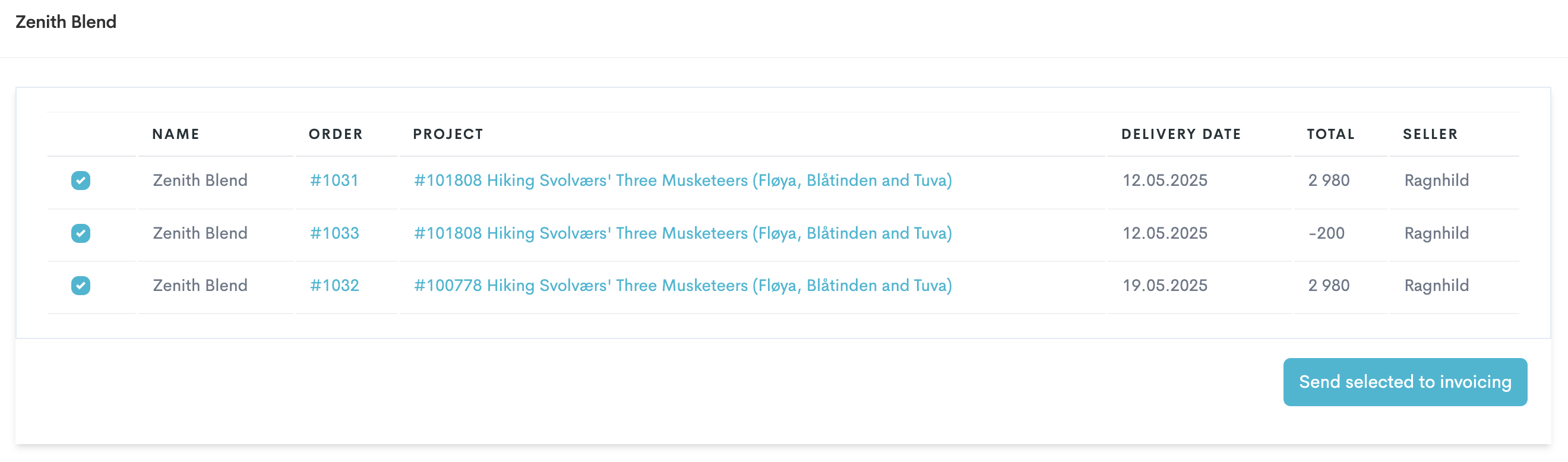
A list of orders made by different agents will show. The orders are automatically toggled if the order is in the past (= a completed/delivered order). After doublechecking this, go further with the next step to send the invoice.
-
Doublecheck the blue boxes

-
If an order is not checked yet and you wish to send out the invoice before the execution date, simply manually check the box.
-
-
Click Send selected to invoicing.
-
Click Refresh.
This will take you to a list of agents with batches that are ready to be invoiced. These batches will be categorised by the agent. From here you can either download or preview the PDF, or mark the invoice as processed.

You can find your invoice batch(es) by navigating to Finance → Invoice basis → Invoice batches.
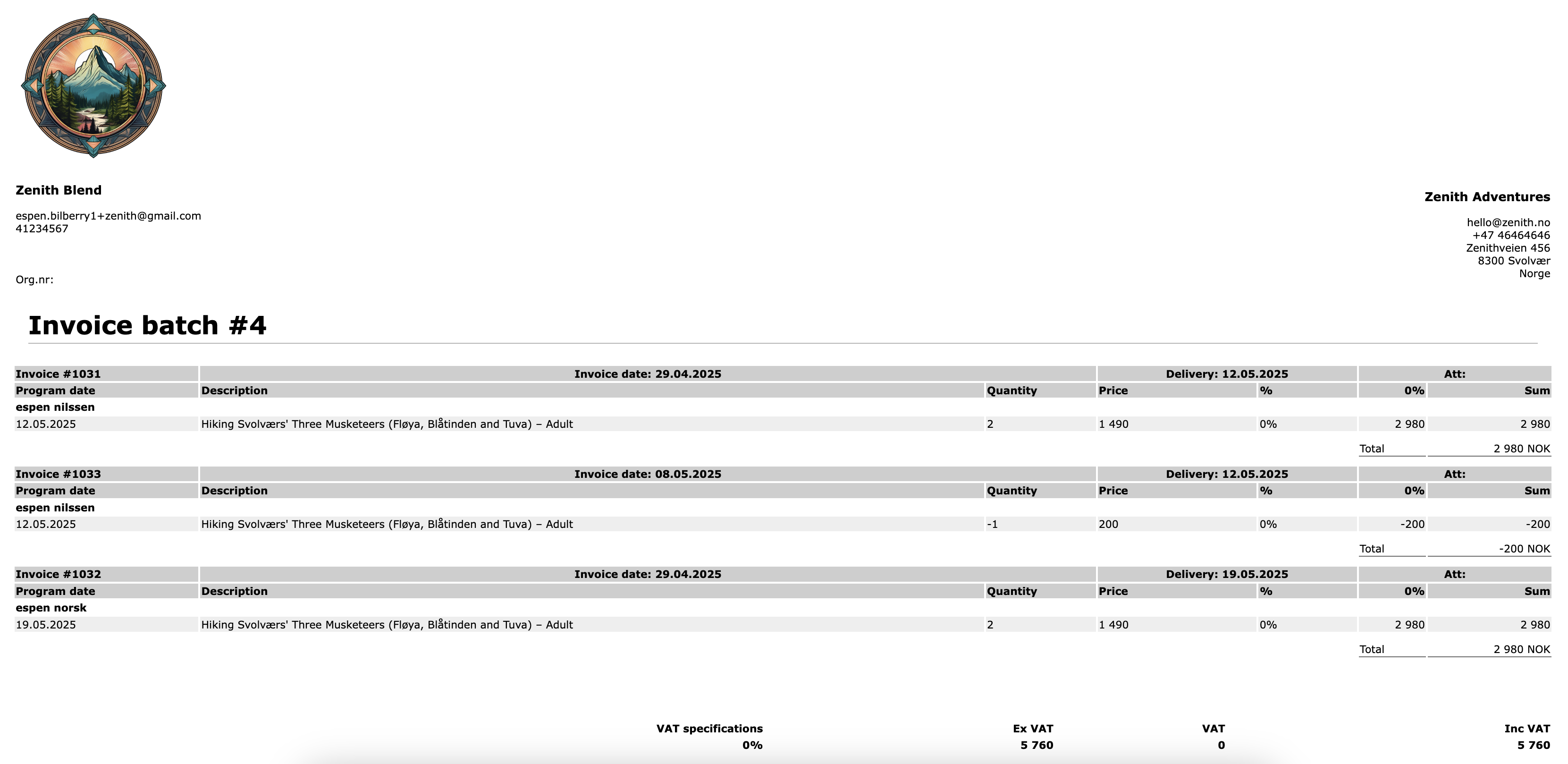
Go further with the next step when you have initialised and sent the invoice through your separate invoicing system and can confirm that this has been sent to the respective supplier.
-
Click Mark as processed.
You can find find the ones that are marked as processed by navigating to Finance → Invoice basis → Invoice batches → Invoiced.
To learn more about invoices, please have a look at our articles about this topic.
Referral Payouts
When a booking comes in through a referral/affiliate link, it is registered on the Agent page in your Bilberry account.
The commission rate is set per product on the agent page under Widgets → Product provision → Referral.
What you see on the agent page:
-
Previous Payouts – commission already processed and marked as paid out.
-
Unpaid Commissions – commission earned but not yet processed.
-
Unpaid referral orders – a list of individual bookings that make up the unpaid total.
The agent sees the same information when they log into their portal. They can find this under Bookings → Referral orders.
Creating a Referral Payout
When you are ready to process a payout (e.g., once delivery dates have passed):
-
Navigate to the Unpaid Referral Orders section.
-
Tick off the referral order(s) you want to include in the payout.
-
Click Create Payout.
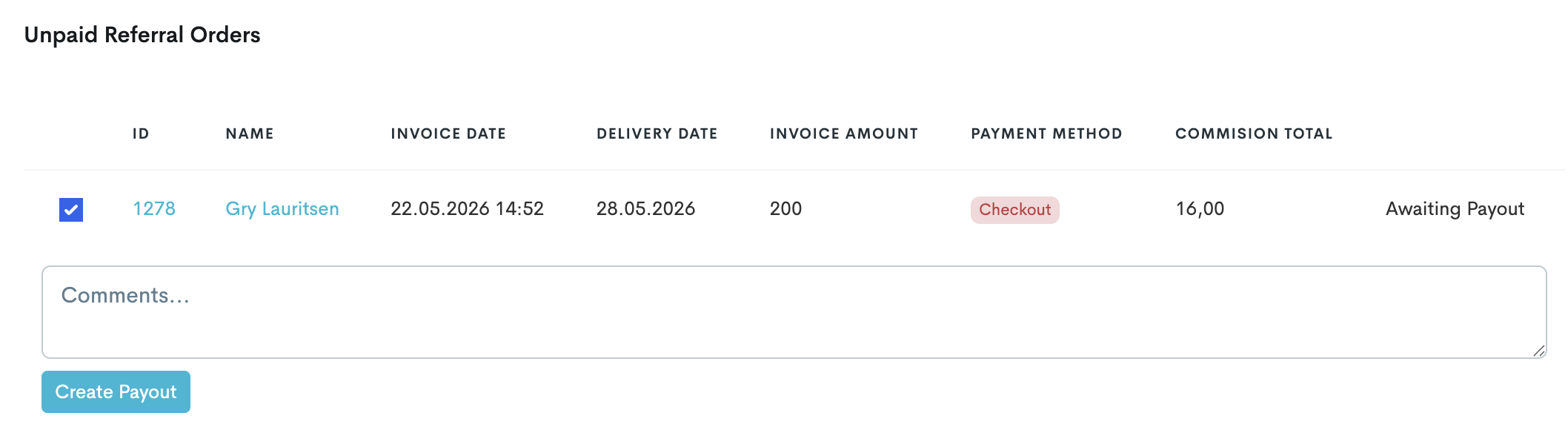
This action moves the commission amount from the selected orders into the Previous Payouts box (the amount here increases and the amount in the Unpaid Commissions box decreases). The orders are also removed from the Unpaid Referral Orders list.
A payout PDF is also generated, which the agent can view and download from the same page.
Creating a payout is a bookkeeping action – it does not trigger an automatic bank transfer.
The actual payment needs to be handled separately, typically when the agent send you an invoice.
Registering Commission After an Order Has Been Placed
-
Navigate to the left main menu and find the order by clicking Dashboard → Order list.
-
Find and click the order in the list.
-
Click the gear icon in the upper right corner of the order.
-
Click Edit.
-
At the very bottom, enter the agent's ID in the Referral ID field:
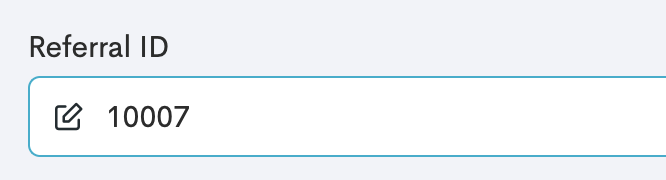
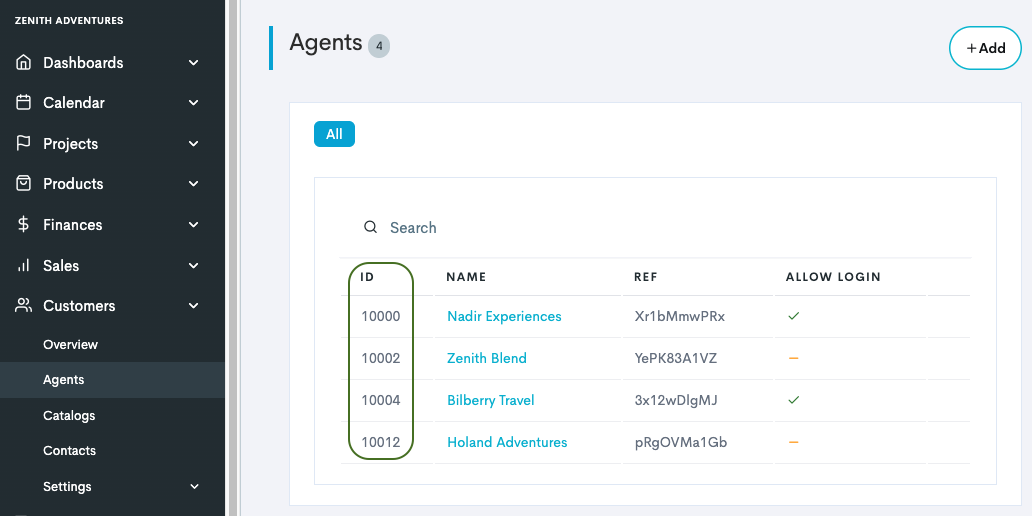
You can find the agent's ID in the agent list, by clicking Customers → Agents: